This article was co-authored with generative AI. Facts have been checked against public documentation where feasible, but errors may remain. Please verify primary sources before relying on this for important decisions.
In some places this article uses placeholders for IDs and domains. For example:
- Firebase project ID:
<firebase-pid>- Firebase Web API key:
<web-api-key>
What this article is about
Suppose you have already gotten as far as publishing images with IIIF (the International Image Interoperability Framework, an international standard for image interoperability) using something like Omeka S. The next step — "I want to select regions of an image (faces, seals, worm damage, and so on), collect them, and turn that into a searchable system" — is where it can be hard to know what to reach for.
There are several options:
- Which tool to use for gathering the selected regions (curation)?
- Which platform to use for searching what you gathered (build it entirely from scratch, or use something off the shelf)?
- Do you place it in a local environment during the creation stage, or on the cloud?
This article records, as one of those options, the steps to stand up the entire IIIF Curation Platform (ICP) — published by CODH (the Center for Open Data in the Humanities) — locally on macOS (Apple Silicon) with Docker. ICP is an off-the-shelf toolset that bundles curation creation, storage, indexing, and search, so you can see the whole "region selection → search" picture on your own machine without writing a search system from scratch.
The intended reader is someone who has just started working with IIIF and Docker. The points I stumbled over while actually running it (BSD sed incompatibilities, port conflicts, Docker running out of disk, localhost name resolution, dependency compatibility) are recorded as gotchas.
The tutorial covers usage; this article covers "building"
The usage of ICP (searching in Finder, how to create curations, running the crawler, customizing facets and display, and so on) is well covered in the ICP tutorial (ICPT) by Chikahiko Suzuki.
- ICP Tutorial (ICPT): https://www.ch-suzuki.com/icpt/04.html
This article therefore focuses on the part that the tutorial covers only lightly: building the whole thing locally on macOS. In particular, it concretely fills in the macOS-specific circumstances that trip you up when you try to run it by hand (the sed difference, localhost name resolution, Docker disk, dependency compatibility). For how to operate the individual components, refer to the tutorial above as well.
ICP is originally designed to be placed on a remote server and published via a reverse proxy. This article is a local-only setup whose purpose is to "first get the whole thing running at hand and understand its behavior." It is not something to use as-is for public operation.
The finished picture
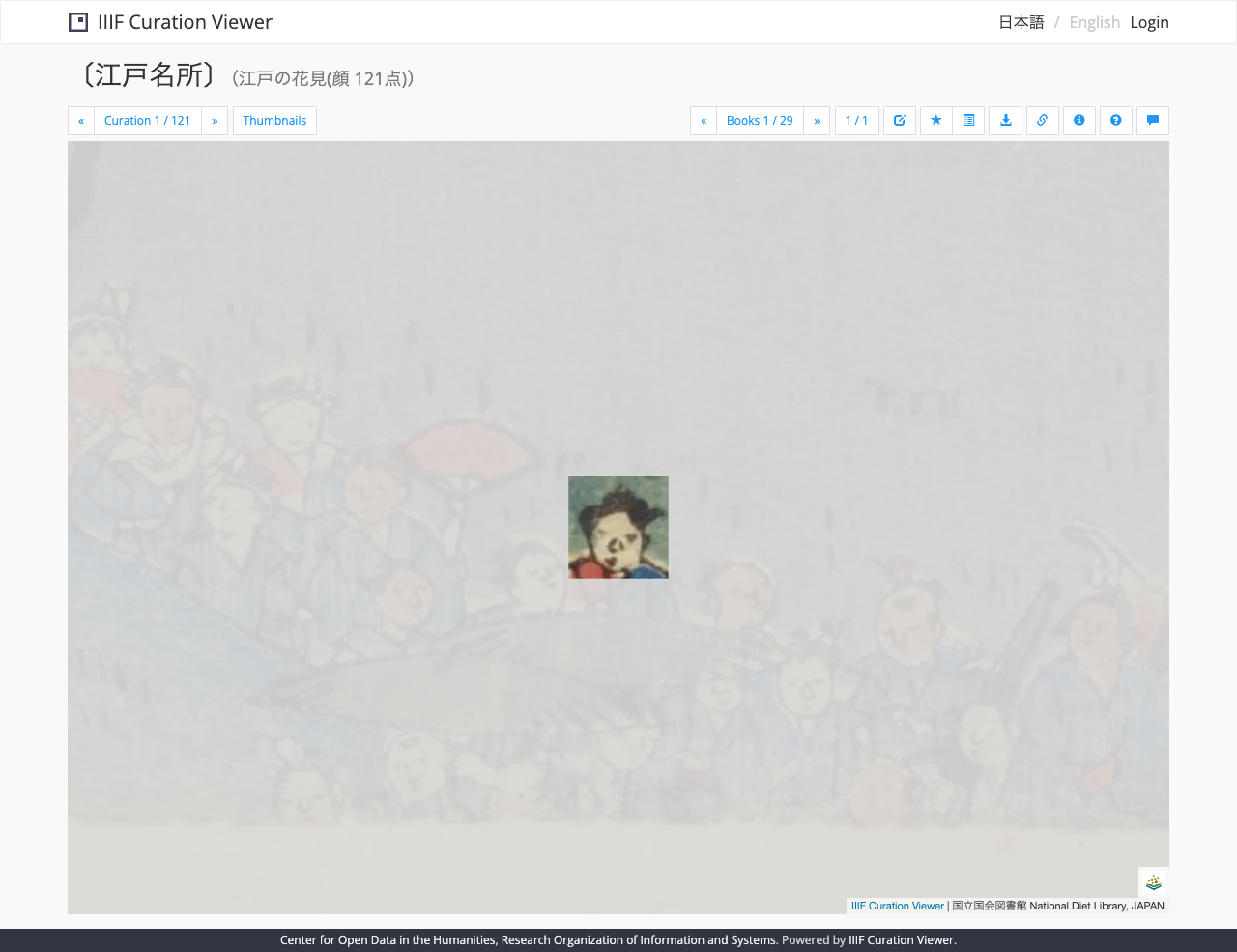
First, here is the screen that ultimately runs at the end of this procedure. The subject is an existing curation built by detecting faces from ukiyo-e in the NDL (National Diet Library) Digital Collections ("Cherry Blossom Viewing in Edo," 121 items).
First, here is a curation opened in the IIIF Curation Viewer. On top of the original image, the selected regions (faces) are shown as rectangles.
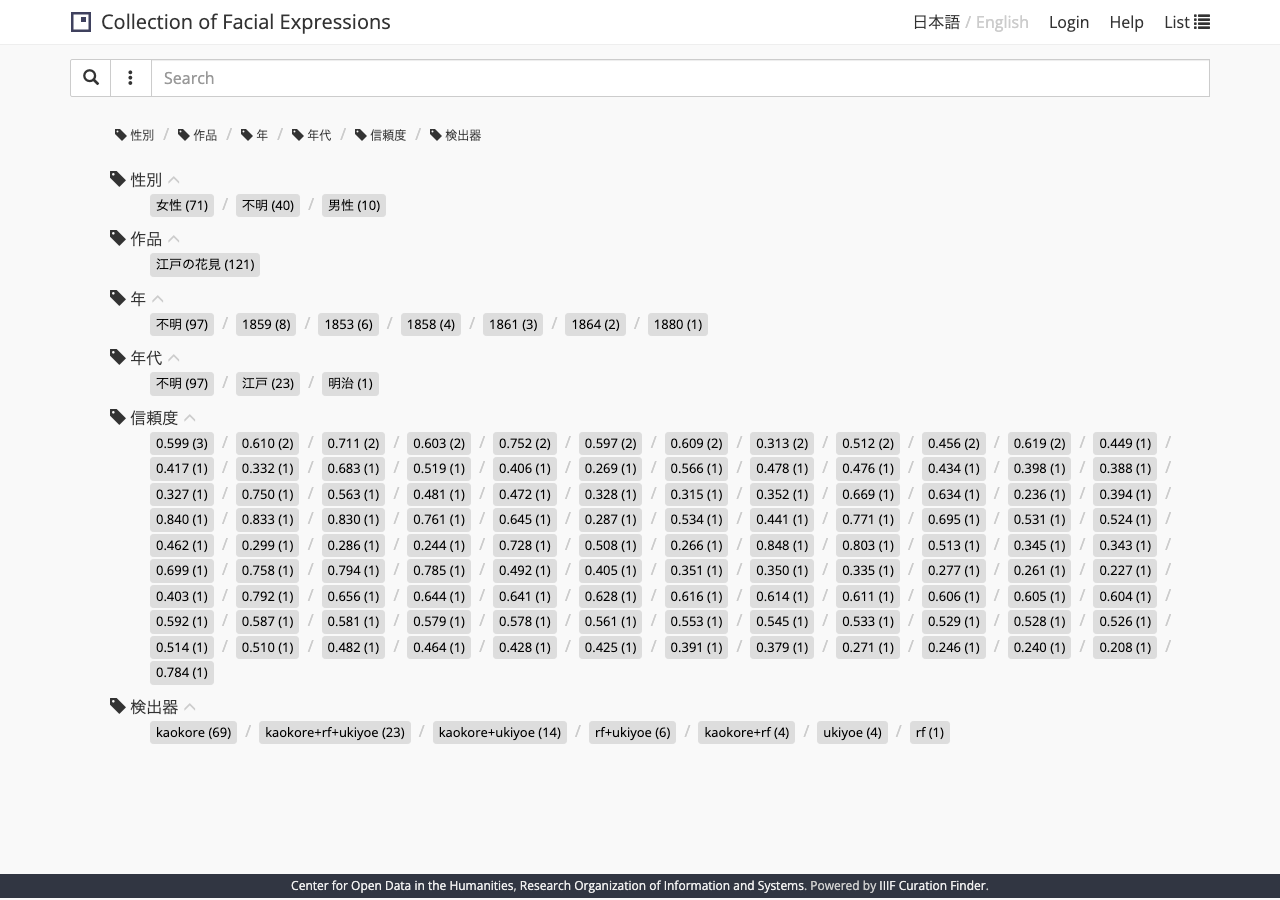
Next is the IIIF Curation Finder. When you index the saved curations, metadata such as gender, work, year, era, confidence, and detector line up as facets (axes for narrowing down).
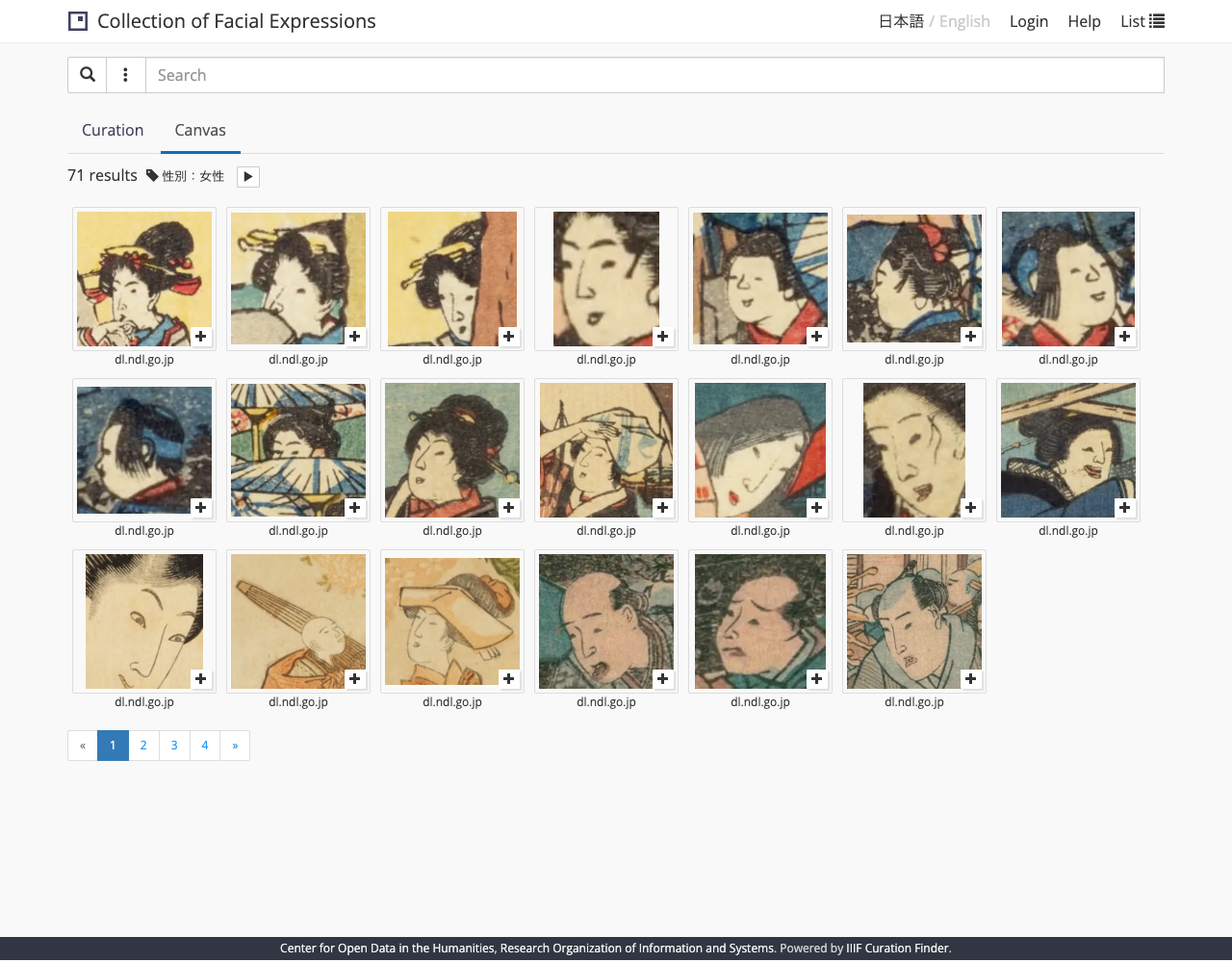
When you narrow down by "Gender: Female," the 71 matching faces are listed as thumbnails (images cropped via IIIF). This is the finished form of "searching what you selected by region."
The components that make up ICP
ICP works by several components cooperating. Let me organize their roles, mapping them to the "points of indecision" from the opening.
| Component | Role | Corresponding use |
|---|---|---|
| IIIF Curation Viewer | Browsing, region selection, and editing of curations | Curation creation |
| IIIF Curation Editor | Editing curations | Curation creation |
| IIIF Curation Player | Playback display of manifests / curations | Browsing |
| IIIF Curation Manager | Management of saved curations | Management |
| IIIF Curation Finder | UI for faceted search | Search system |
| JSONkeeper | Storage for curation JSON (HTTP API) | Storage |
| Canvas Indexer | Crawls curations and builds an index | Search indexing |
The data flow is as follows.
Select regions in Viewer/Editor and create a curation
        │  save
        ▼
JSONkeeper (stores + generates an Activity Stream)
        │  crawl
        ▼
Canvas Indexer (indexes canvases and metadata)
        │  facet / search API
        ▼
Finder (the narrowing-search screen)
The repository is a set of setup scripts for Docker.
- Source repository: https://github.com/rois-codh/iiif-curation-platform-docker
Prerequisites
Here is the working environment for this article.
- macOS (Apple Silicon)
- Docker Desktop (Docker Engine 29.x, Docker Compose v2.x)
- Homebrew
Make sure Docker Desktop is running.
docker version
docker compose version
Steps
1. Get the repository
git clone https://github.com/rois-codh/iiif-curation-platform-docker.git
cd iiif-curation-platform-docker
It contains setup.sh (fetching and configuring components), start.sh / stop.sh (start / stop), docker-compose.yml.dist (a Compose template), and so on.
2. Install GNU sed (macOS gotcha #1)
setup.sh rewrites various configuration files with sed -i -E "...". That is the GNU sed syntax (the Linux default), and it does not work as-is with the BSD sed that ships with macOS. BSD sed requires a backup extension immediately after -i, so the -i -E ordering breaks.
Install GNU sed (gsed).
brew install gnu-sed
Then replace sed -i -E inside setup.sh with gsed -i -E.
gsed -i 's/\bsed -i -E/gsed -i -E/g' setup.sh
setup.shalso hassed 's/.../'(a substitution over a pipe, without-i) in a few places. Those are in a branch that does not run under the default settings (it is only reached when you specify a custom API path), so I did not touch them this time.
3. Decide the destination URL and ports (why avoid localhost)
At the top of setup.sh there are lines that set the URL for external access (externalurl) and the starting port number (start_port). They come with initial values, so rewrite them as follows.
externalurl=http://icp.localhost:8888/cp
start_port=9001
There is a reason for making the hostname icp.localhost rather than localhost here. As described later, this URL must be reachable by the same string not only "from the browser" but also "from inside the Docker container (Canvas Indexer)." Inside a container, localhost refers to "the container itself" and does not reach services on the host side.
A *.localhost name such as icp.localhost resolves automatically to 127.0.0.1 on macOS. In addition, with Docker's extra_hosts feature, it can be pointed from the container toward the "host side." This two-stage arrangement lets the same URL work from both the browser and the container (details in Step 8).
Setting start_port to 9001 assigns each component as follows.
- JSONkeeper:
9001 - Canvas Indexer:
9002 - Frontend (Viewer/Finder, etc.):
9003
And in front of these, we stand up a reverse proxy published on 8888 and aggregate everything under http://icp.localhost:8888/cp/....
4. Add a reverse proxy
Since each component is exposed on a separate port, that alone does not give you a state where "everything is under a single URL." The JavaScript in the browser assembles the save destination and search destination from a single URL base, so we add one lightweight reverse proxy (nginx) for aggregation.
docker compose automatically loads docker-compose.override.yml, so we define the proxy there. This way we do not have to touch the docker-compose.yml that setup.sh generates, and it will not be erased even if you re-run setup.sh.
proxy/nginx.conf:
server {
    listen 80;
    server_name localhost;
    client_max_body_size 64m;
    # Use a relative Location so the host port (:8888) is not dropped from the redirect target
    absolute_redirect off;

    location = /cp        { return 302 /cp/viewer/; }
    location = /cp/       { return 302 /cp/viewer/; }

    location /cp/curation/ {
        proxy_pass http://jsonkeeper:8000/;
        proxy_set_header Host $host;
        proxy_set_header X-Forwarded-For $proxy_add_x_forwarded_for;
        proxy_set_header X-Forwarded-Proto $scheme;
    }
    location /cp/index/ {
        proxy_pass http://canvasindexer:8000/;
        proxy_set_header Host $host;
        proxy_set_header X-Forwarded-For $proxy_add_x_forwarded_for;
        proxy_set_header X-Forwarded-Proto $scheme;
    }
    location /cp/viewer/  { proxy_pass http://frontend:80/viewer/;  proxy_set_header Host $host; }
    location /cp/finder/  { proxy_pass http://frontend:80/finder/;  proxy_set_header Host $host; }
    location /cp/manager/ { proxy_pass http://frontend:80/manager/; proxy_set_header Host $host; }
    location /cp/editor/  { proxy_pass http://frontend:80/editor/;  proxy_set_header Host $host; }
    location /cp/player/  { proxy_pass http://frontend:80/player/;  proxy_set_header Host $host; }
}
docker-compose.override.yml:
version: '2'

services:
  proxy:
    image: nginx:alpine
    labels:
      - 'curation_platform_9001'
    ports:
      - '8888:80'
    volumes:
      - ./proxy/nginx.conf:/etc/nginx/conf.d/default.conf:ro
    depends_on:
      - jsonkeeper
      - canvasindexer
      - frontend

  # Make Canvas Indexer / JSONkeeper able to reach the host side (the proxy)
  canvasindexer:
    extra_hosts:
      - 'icp.localhost:host-gateway'
  jsonkeeper:
    extra_hosts:
      - 'icp.localhost:host-gateway'
Since the proxy is on the same Compose network as the other services, it can forward directly using the service names jsonkeeper / canvasindexer / frontend.
If
8888is used by another container or app,Bind for 0.0.0.0:8888 failed: port is already allocatedappears when the proxy starts. Check who is using it withlsof -nP -iTCP:8888 -sTCP:LISTENand change to a free port (change8888inexternalurland in each config accordingly).
5. Fetch and build the components
Run setup.sh. It clones JSONkeeper and Canvas Indexer from GitHub, fetches the frontend (Viewer and so on) from the CODH site, rewrites each config (server_url, curationJsonExportUrl, etc.) to match externalurl, generates docker-compose.yml, and finally builds the images and creates the containers (it does not start them yet at this point).
Before that, place an empty Firebase key file. docker-compose.yml is configured to mount a key file into JSONkeeper, and if the file is missing an empty directory gets created instead. Placing it under setup/jk/ makes setup.sh copy it over to the JSONkeeper side (if you use Firebase, place your real service account key here — described later).
echo '{}' > setup/jk/firebase-adminsdk.json
./setup.sh
If the build fails with an
I/O errorwhileapkunpacks a package, Docker Desktop's virtual disk may be tight (this happens even if the host disk has free space, as long as Docker's virtual disk side is full). First free the build cache and re-run./setup.sh. It does not touch images, containers, or volumes, so it is safe.docker builder prune -f docker system df # check free space ./setup.sh
6. Make Canvas Indexer work with SQLAlchemy 2.0 (a dependency gotcha)
The Canvas Indexer fetched by setup.sh returns a 500 error from the search API (/index/api) as-is. The cause is that Canvas Indexer's queries are still written in an old style, while the pinned dependency is the new SQLAlchemy 2.0.x (sqlalchemy==2.0.43). In 2.0, you can no longer pass a Query object as a join target, or have it infer implicit join conditions.
Be sure to apply this patch after running
setup.sh.setup.shrm -rfs Canvas Indexer every time and re-clones it, so applying it first will be overwritten and erased. When you later re-runsetup.sh, this patch (and, if you use Firebase,authFirebase.js) must be reapplied.
Open Canvas-Indexer/canvasindexer/api/views.py and replace the block from # filter records down to docs = docs.join(assocs).join(terms).all() exactly with the following. It joins via ORM relationships (Doc.terms → Assoc, Assoc.term → Term), and accumulates filter conditions into a list to apply them all at the end.
    # filter records
    # Join via ORM relationships (Doc.terms -> Assoc, Assoc.term -> Term),
    # accumulate filter conditions in a list and apply them at the end (SQLAlchemy 2.0 compatible)
    docs = Doc.query.join(Doc.terms).join(Assoc.term)
    assoc_filters = []
    term_filters = [not_(Term.term == current_app.cfg.e_term())]

    for hidden_term in current_app.cfg.facet_label_hide():
        term_filters.append(not_(Term.qualifier == hidden_term))

    if vrom not in ['curation,canvas', 'canvas,curation']:
        assoc_filters.append(Assoc.metadata_type == vrom)
    if where_agent in ['human,machine', 'machine,human']:
        pass
    elif where_agent == 'human':
        assoc_filters.append((Assoc.actor == 'human') |
                             (Assoc.actor == 'unknown'))
    else:
        assoc_filters.append(Assoc.actor == where_agent)
    if where:
        if fuzzy:
            term_filters.append(Term.term.ilike('%{}%'.format(where)))
        else:
            term_filters.append(Term.term == where)
    elif where_metadata_label:
        if fuzzy:
            term_filters.append(Term.term.ilike('%{}%'.format(
                                                          where_metadata_value
                                                              )))
            term_filters.append(Term.qualifier == where_metadata_label)
        else:
            term_filters.append(Term.term == where_metadata_value)
            term_filters.append(Term.qualifier == where_metadata_label)

    docs = docs.filter(*assoc_filters).filter(*term_filters).all()
The debug-only route in the same file also still has an old string-based join Canvas.query.join('terms', 'term'). Fix that too (this location is not reached in production mode, but it likewise does not work under 2.0 for the same reason).
        canvases = (Canvas.query.join(Canvas.terms)
                                .join(TermCanvasAssoc.term)
                                .filter(Term.term == q))
Once rewritten, rebuild just this component.
docker compose build canvasindexer
7. Start it
docker compose up -d
docker compose ps
You are good if all four — jsonkeeper / canvasindexer / frontend / proxy — are running.
8. Why icp.localhost (the name-resolution gotcha)
This is the crux of running it locally.
A saved curation embeds an @id (the URL of the curation itself), and based on externalurl it becomes http://icp.localhost:8888/cp/curation/api/.... When Canvas Indexer builds an index, it actually follows this @id to fetch the body.
- From the browser,
icp.localhost→127.0.0.1→ the proxy (8888) is reached. - From the Canvas Indexer container, thanks to
extra_hosts: ['icp.localhost:host-gateway']in Step 4,icp.localhost→ the host → the proxy (8888) is reached.
If you used localhost here, inside the container localhost would refer to the container itself, so the crawl would get Connection refused and no index could be built. That is why we use icp.localhost, which is reachable by the same string from both the browser and the container.
You can verify reachability as follows.
# Browser-equivalent (from the host)
curl -s -o /dev/null -w '%{http_code}\n' http://icp.localhost:8888/cp/viewer/

# From the container
docker compose exec canvasindexer \
  python3 -c "import urllib.request as u; print(u.urlopen('http://icp.localhost:8888/cp/viewer/', timeout=6).status)"
9. Check that it works
You can open each component in a browser.
| Use | URL |
|---|---|
| Viewer (browsing, region selection) | http://icp.localhost:8888/cp/viewer/ |
| Finder (search) | http://icp.localhost:8888/cp/finder/ |
| Player | http://icp.localhost:8888/cp/player/ |
| Editor | http://icp.localhost:8888/cp/editor/ |
| Manager | http://icp.localhost:8888/cp/manager/ |
The Viewer can load an external curation via a URL parameter.
http://icp.localhost:8888/cp/viewer/?curation=<URL of the curation JSON>
The finished picture at the top of this article is what you get by opening the following URL (the NDL face-detection curation example).
http://icp.localhost:8888/cp/viewer/?curation=https://nakamura196.github.io/ndl-face-finder/curations/works/edonohanami.json
Running search: save → crawl → search (connectivity check)
The Finder screen itself opens right away, but getting search results to appear requires the extra step of "saving a curation and indexing it." Here, as a minimal connectivity check to confirm that the build is correct, we go through one full loop using only commands. For the normal usage of creating and searching curations from the browser, refer to the ICPT cited above.
Save a curation
Save the curation JSON to JSONkeeper. If you attach an arbitrary string in the X-Access-Token header, JSONkeeper saves it as a document "with an owner (access token)," which is the condition for it to appear as a search target (the Activity Stream).
First, fetch the subject curation JSON locally.
curl -L -o edonohanami.json \
  https://nakamura196.github.io/ndl-face-finder/curations/works/edonohanami.json
POST it to the save destination.
curl -X POST http://icp.localhost:8888/cp/curation/api \
  -H "Content-Type: application/ld+json" \
  -H "X-Access-Token: demo-token-1" \
  --data-binary @edonohanami.json
It returns 201 Created, and the @id is rewritten to http://icp.localhost:8888/cp/curation/api/... when saved. You can confirm that the Activity Stream was generated with the following.
curl -s http://icp.localhost:8888/cp/curation/as/collection.json | python3 -m json.tool | head
If you save without attaching
X-Access-Token(an anonymous POST), the document is stored but does not appear in the Activity Stream. This is because JSONkeeper is designed to feed only documents that have an owner and are not set to private into the Activity Stream. In real operation, this is replaced by a token obtained from a Firebase login (described later).
Index (crawl)
Have Canvas Indexer crawl the Activity Stream.
curl http://icp.localhost:8888/cp/index/crawl
It is done when it returns {"message": "done"}. Check whether facets were created.
curl -s http://icp.localhost:8888/cp/index/facets | python3 -m json.tool | head -40
If aggregations such as gender, work, year, and era come back, indexing succeeded. After that, open Finder (/cp/finder/) and, as at the top of this article, the facets line up, and narrowing down produces a list of the matching faces.
If you use Firebase (optional)
Everything up to here runs without Firebase. Firebase is needed when you want to log in as a user from the Finder / Manager screens and use the feature to save and manage your own curations.
If needed, do the following.
- Place the Firebase project's service account key at
setup/jk/firebase-adminsdk.json. - Uncomment the
[firebase]section insetup/jk/config.ini. - Rewrite the
firebaseConfigin each of the Viewer / Finder / Manager / EditorauthFirebase.jsfiles to your own project's Web settings.
You can extract the Web settings (apiKey and so on) with the Firebase CLI.
firebase apps:sdkconfig WEB --project <firebase-pid>
firebaseConfig roughly takes the following shape (apiKey and so on are public values embedded in the Web page).
var firebaseConfig = {
    apiKey: '<web-api-key>',
    authDomain: '<firebase-pid>.firebaseapp.com',
    projectId: '<firebase-pid>',
    storageBucket: '<firebase-pid>.firebasestorage.app',
    messagingSenderId: '<messaging-sender-id>'
};
If you use the browser login (
signInWithPopup), you need to register the accessing domain in Firebase's "Authorized domains."localhostis registered by default, but if you useicp.localhostas in this article, addicp.localhostin the Firebase console. If you only verify up to search using the save API (X-Access-Token) without using login, this registration is unnecessary.
The service account key is confidential. Be careful not to commit it to the repository (the source repository's .gitignore excludes setup/jk/firebase-adminsdk.json and the like).
Summary of gotchas
Here is a list of the points I stumbled over when running it locally.
- BSD
sed:setup.shassumes GNUsed.brew install gnu-sedand replacesed -i -Ewithgsed -i -E. - Port conflicts: If
8888(or9001–) is used elsewhere, startup fails. Check withlsofand change to a free port. - Docker virtual disk shortage: An
I/O errorduring a build can be a disk shortage. Free the build cache withdocker builder prune -f. localhostname resolution: Inside a container,localhostis the container itself. Useicp.localhost+extra_hosts: host-gatewayso it is reachable from both the browser and the container.- SQLAlchemy 2.0 incompatibility: Canvas Indexer's search query is written in an old style. Fix it to join via relationships.
- Empty search data: Finder produces no results unless you save → crawl. Save with
X-Access-Tokenattached and hit/index/crawl.
Where this stands as an option
For the opening question of "how to build a system that lets you select regions and search them," ICP is the following kind of option.
- Without writing a search system from scratch, it provides curation creation (Viewer/Editor), storage (JSONkeeper), indexing (Canvas Indexer), and search (Finder) off the shelf.
- Because it conforms to IIIF, you can use IIIF manifests created in Omeka S and the like directly as material.
- It makes it easy to arrange a sequence where you first run the whole thing locally with Docker to understand its behavior, and then move it to a public configuration (server + reverse proxy).
On the other hand, when you want to push hard on fine customization of the UI and facets, or on custom search requirements (fuzzy search, multilingual, scoring, and so on), customizing Omeka S or building your own using a search platform (Elasticsearch and the like) can be more flexible. ICP is best positioned as an easy-to-handle starting point for "first grasping the whole picture of region selection and search with something off the shelf."
- Source repository: https://github.com/rois-codh/iiif-curation-platform-docker
- IIIF Curation Platform (CODH): http://codh.rois.ac.jp/iiif-curation-platform/
- ICP Tutorial (ICPT, usage): https://www.ch-suzuki.com/icpt/

Comments
…