How to use the DTS Viewer
A video walkthrough of the browser app for hierarchically browsing digital text collections published via the DTS (Distributed Text Services) API.
Narrated walkthrough
Chapters
- 1
Introduction
Overview of the DTS Viewer and DTS (Distributed Text Services)
Narration script
- 0:02DTS Viewer
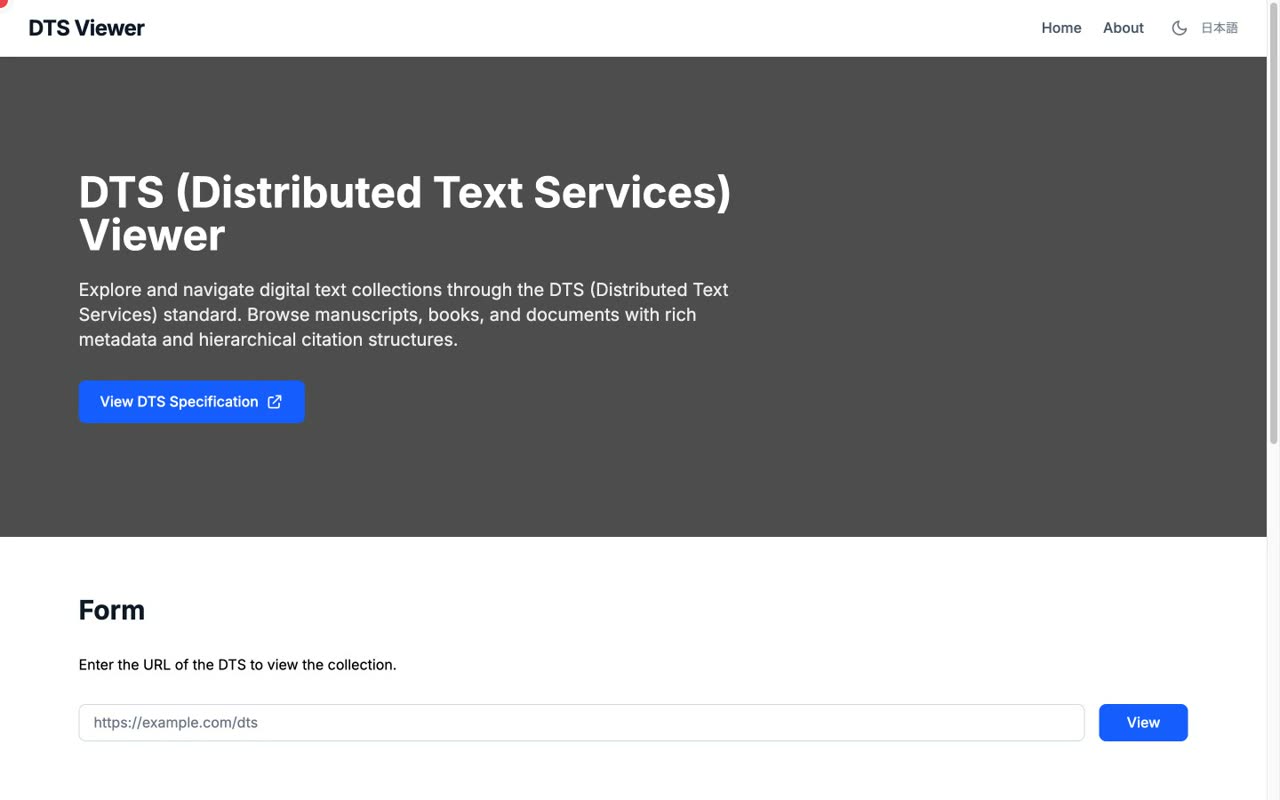
DTS Viewer is a web application that lets you explore and read digital text collections entirely in your browser, through a standard called DTS — Distributed Text Services. In this video, we'll walk through its main features by operating the live app.
- 0:28DTS — a shared specification for publishing text
DTS is a specification for publishing text collections — manuscripts, books, documents — together with their metadata over a REST API. By publishing in this agreed-upon way, repositories and applications can interoperate with one another.
- 2
Getting started
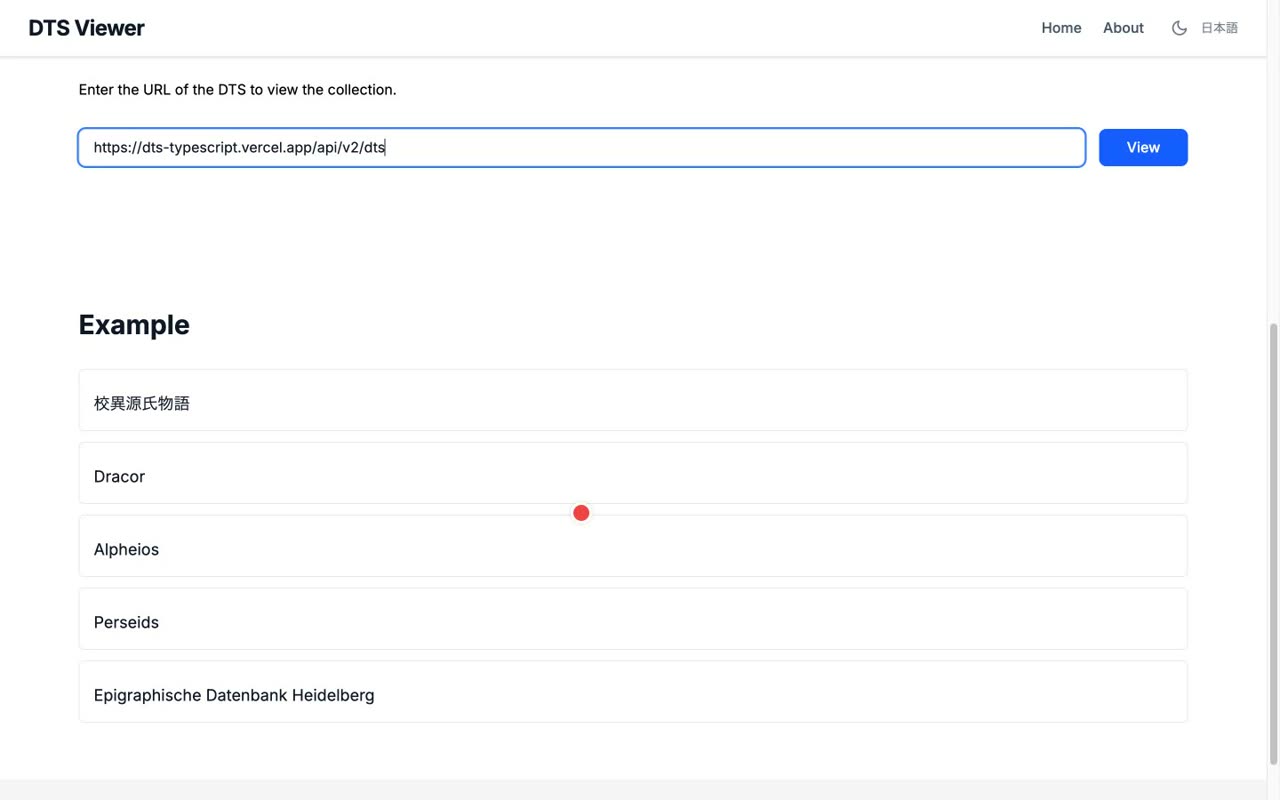
Entering a DTS API URL or choosing from the bundled examples
Narration script
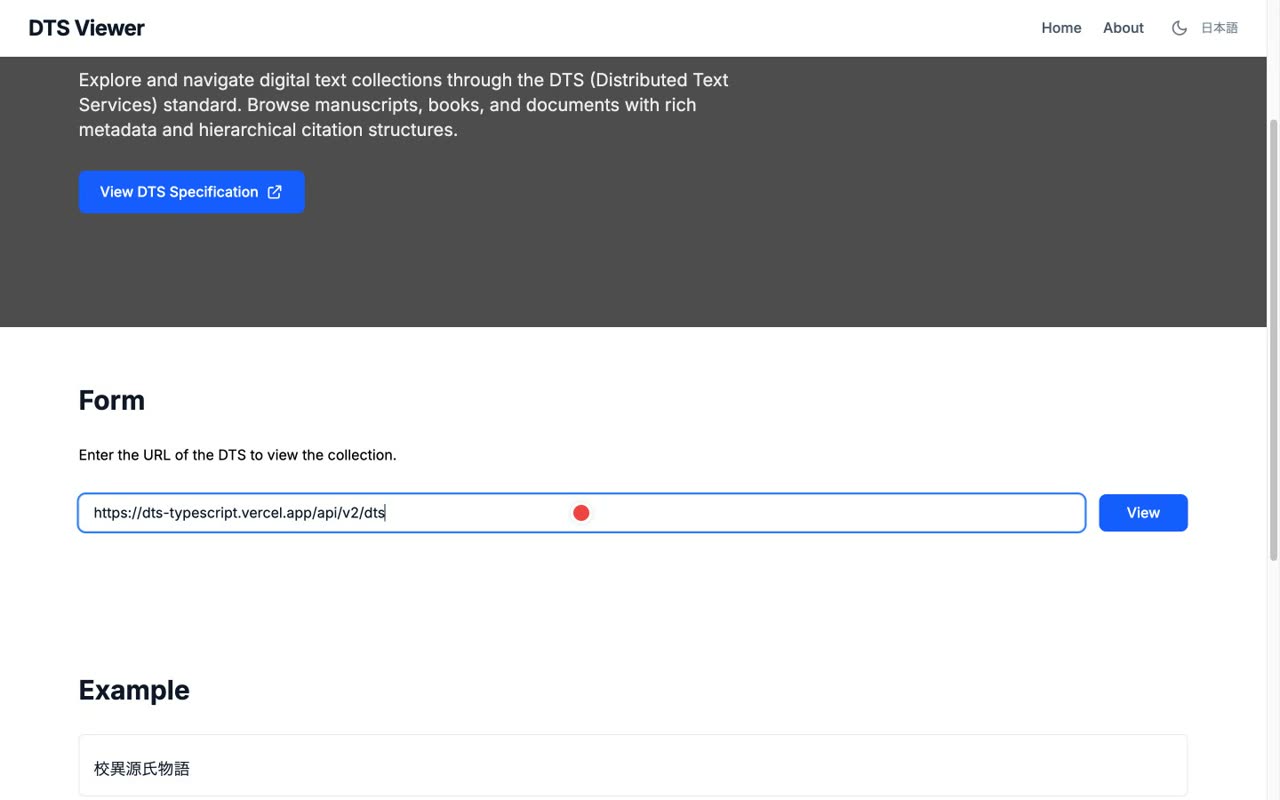
- 0:05How to use it: enter a DTS API URL and click Show
Using it is simple. On the home screen, enter the endpoint URL of the DTS API you want to browse into the form, and press the Show button.
- 0:21Try the built-in examples
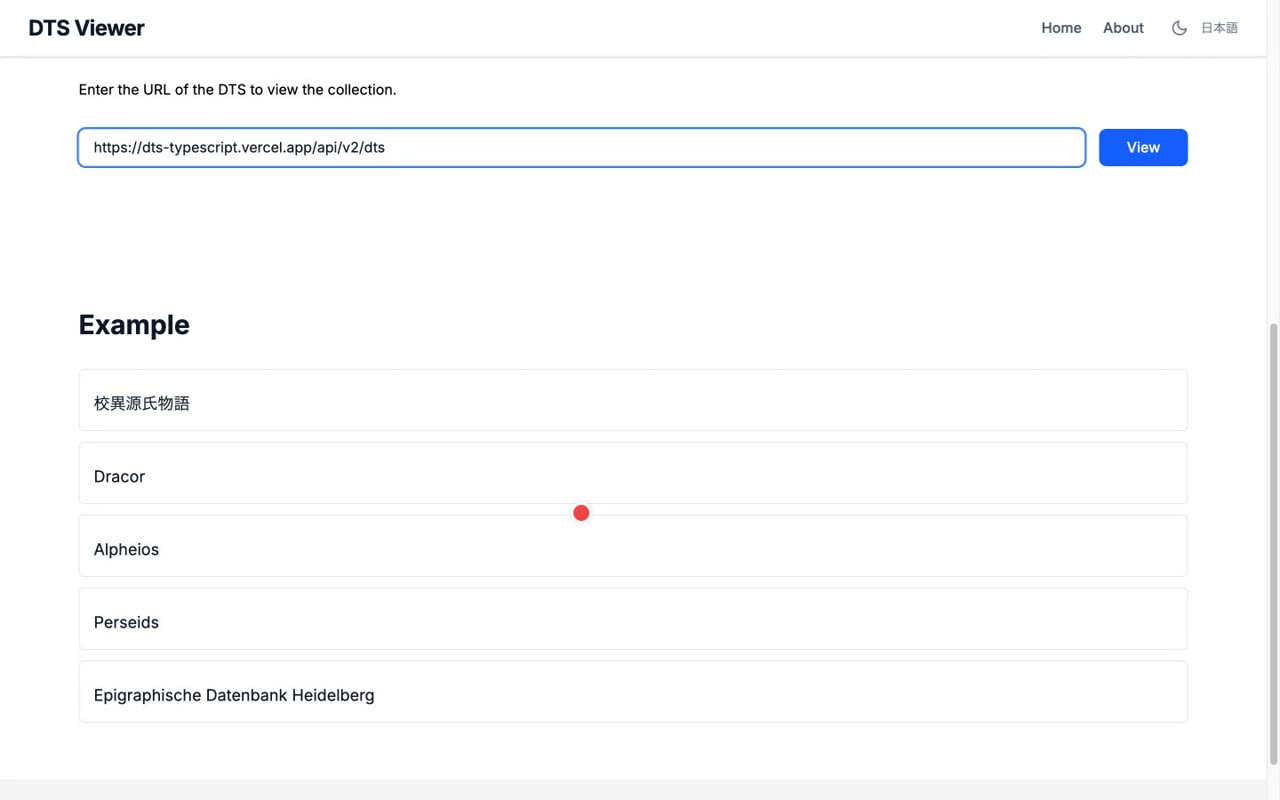
You don't even need your own URL — you can start from the examples at the bottom of the page. They range from Japanese classics to European drama and inscriptions: the Kōi Genji Monogatari, Dracor, Alpheios, Perseids, and the Epigraphic Database Heidelberg.
- 0:40One viewer, texts from around the world
Because DTS is adopted by research projects worldwide, a single viewer lets you browse a wide variety of texts across collections.
- 3
Collection view
Kōi Genji Monogatari (54 chapters), Dublin Core metadata, item list
Narration script
- 0:05Collection view: 54 items (the 54 chapters of Genji)
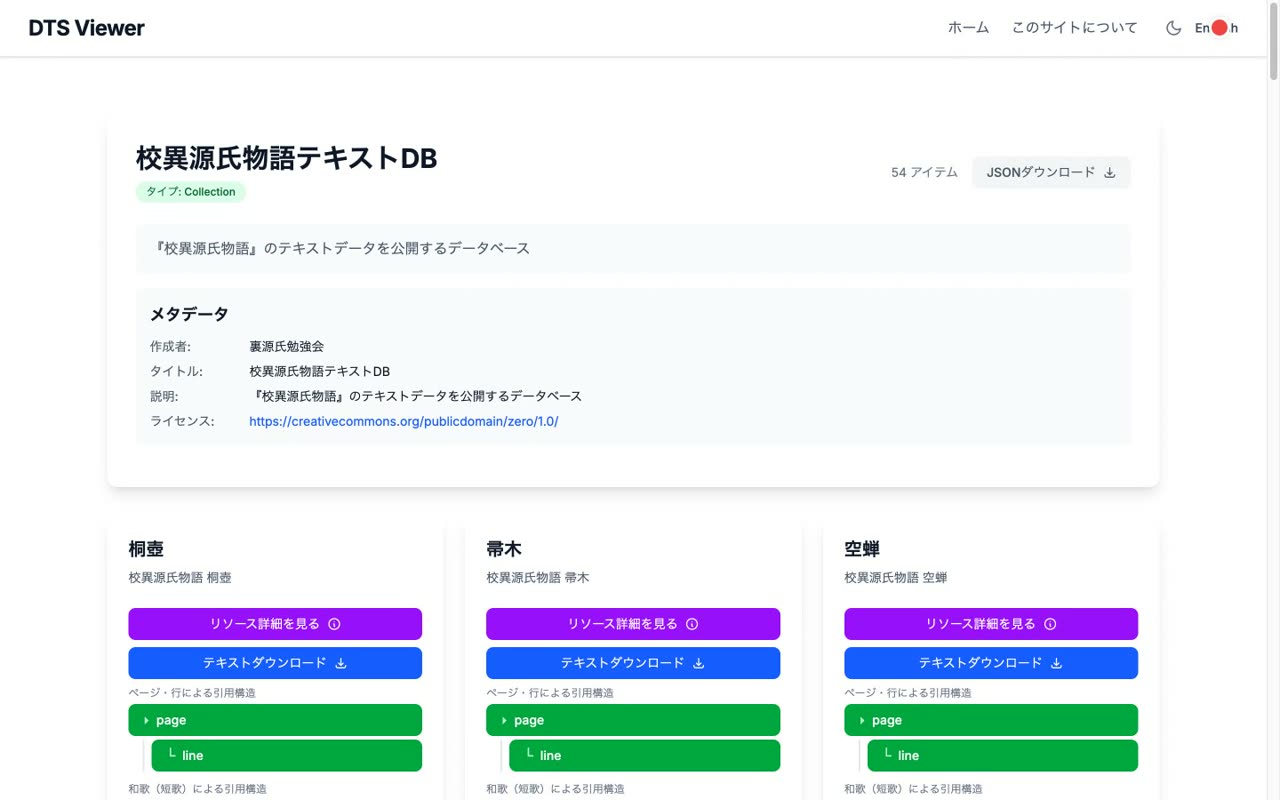
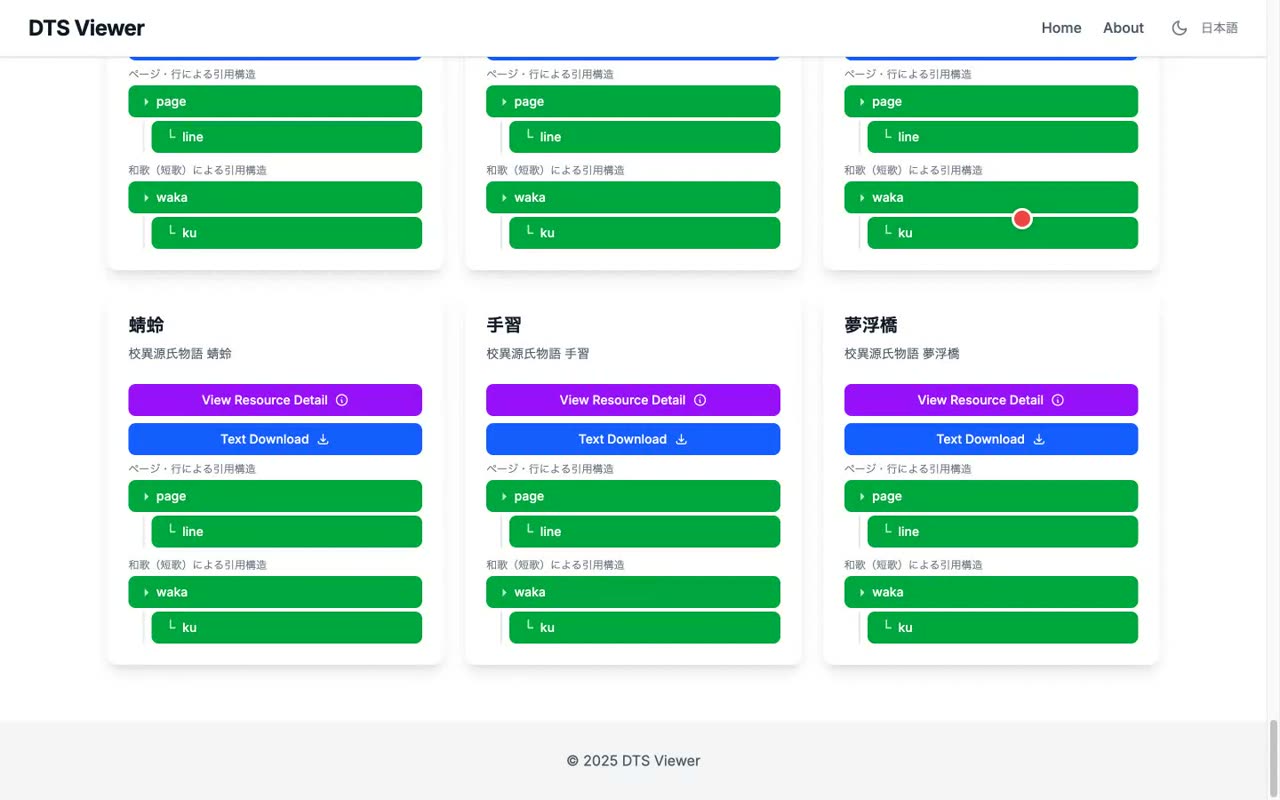
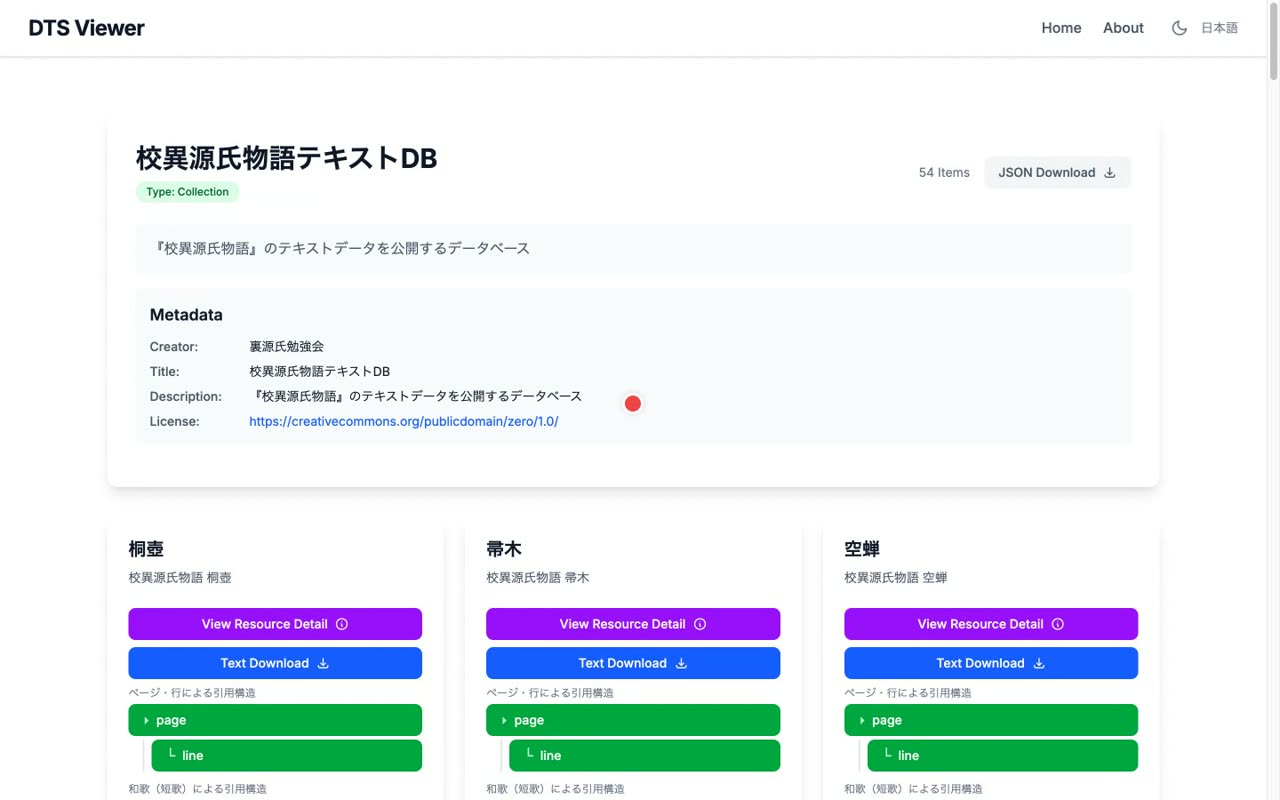
As an example, let's open the Kōi Genji Monogatari. Clicking it switches to the collection view: the type is Collection, with 54 items in total — the 54 chapters of The Tale of Genji.
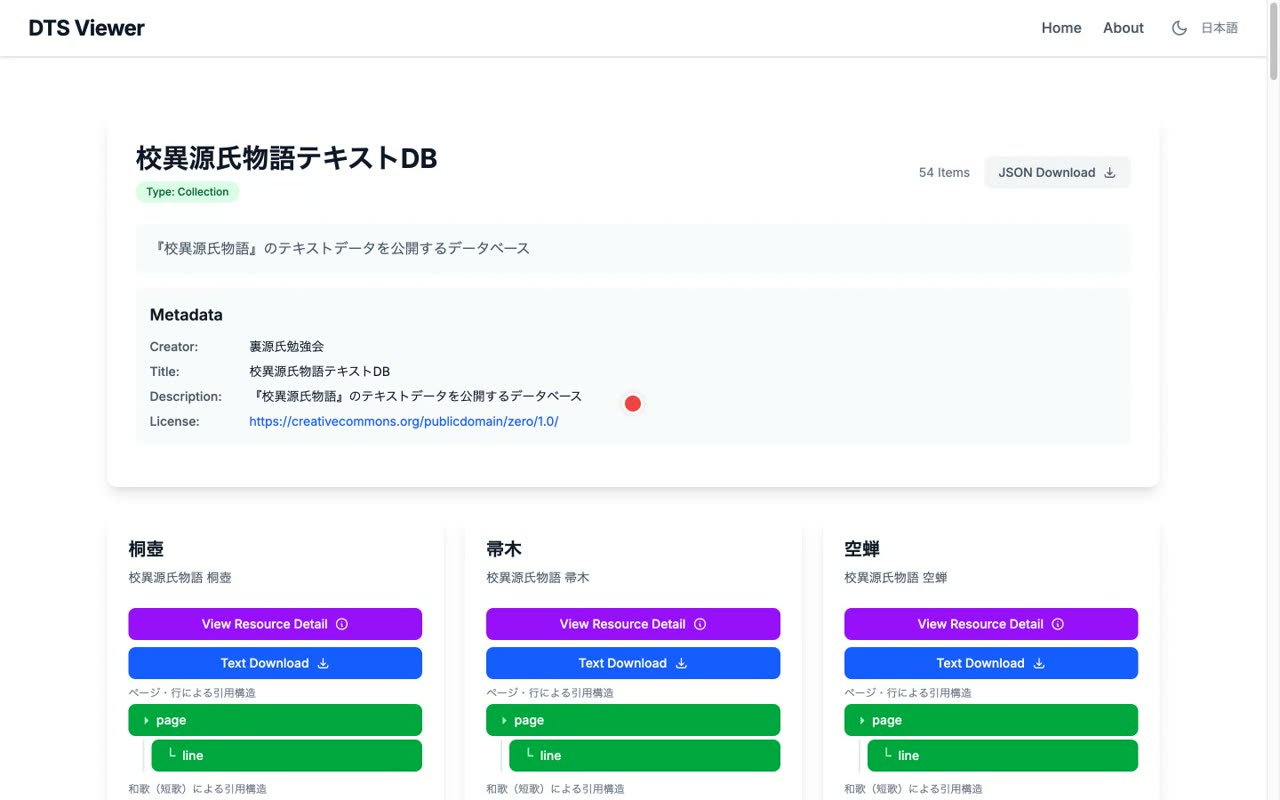
- 0:24Dublin Core metadata + JSON download
At the top of the screen, metadata is displayed. Following the Dublin Core standard, you can see the creator, title, description, and license. The JSON download button lets you fetch the raw data as well.
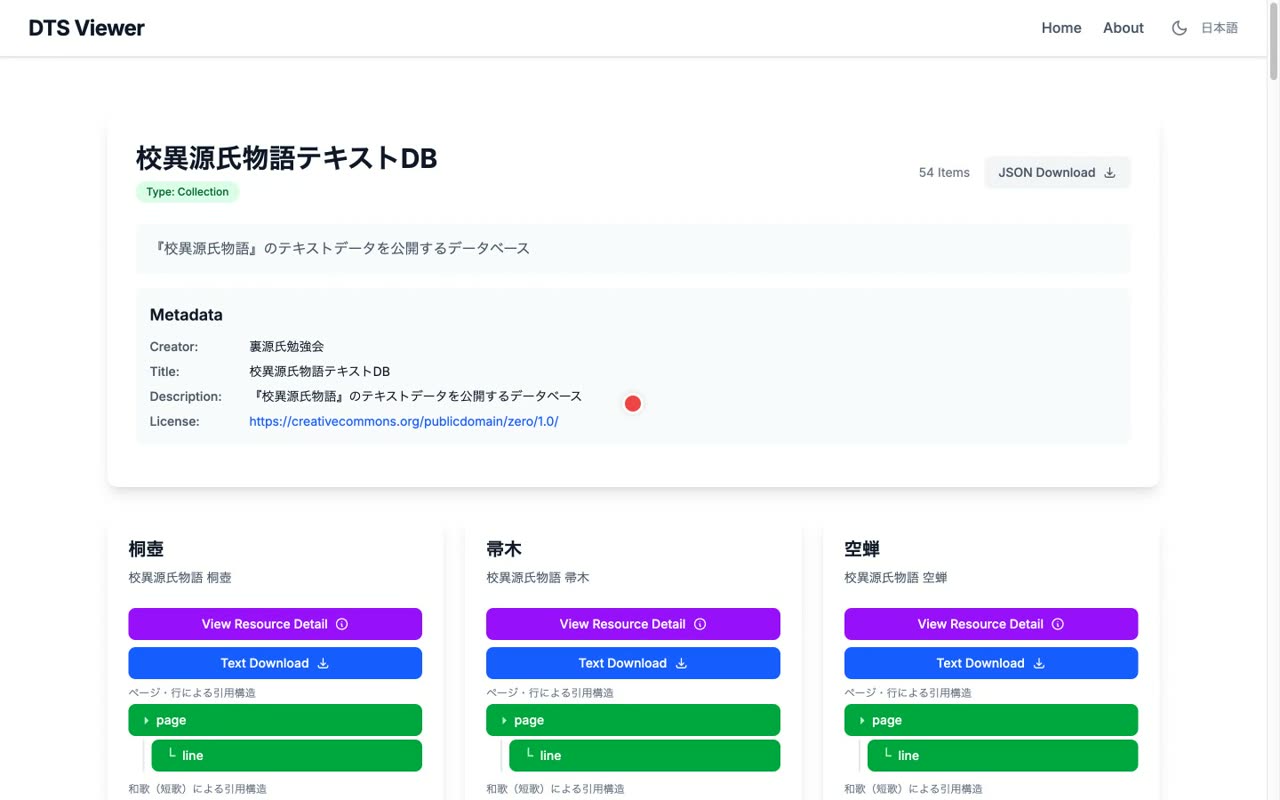
- 0:50Each chapter listed as a card
Below that, each chapter is listed as a card — Kiritsubo, Hahakigi, Utsusemi, and so on.
- 4
Citation structure & resource details
Resource metadata, identifiers (urn), text / XML downloads
Narration script
- 0:05Citation structures: an address into the text
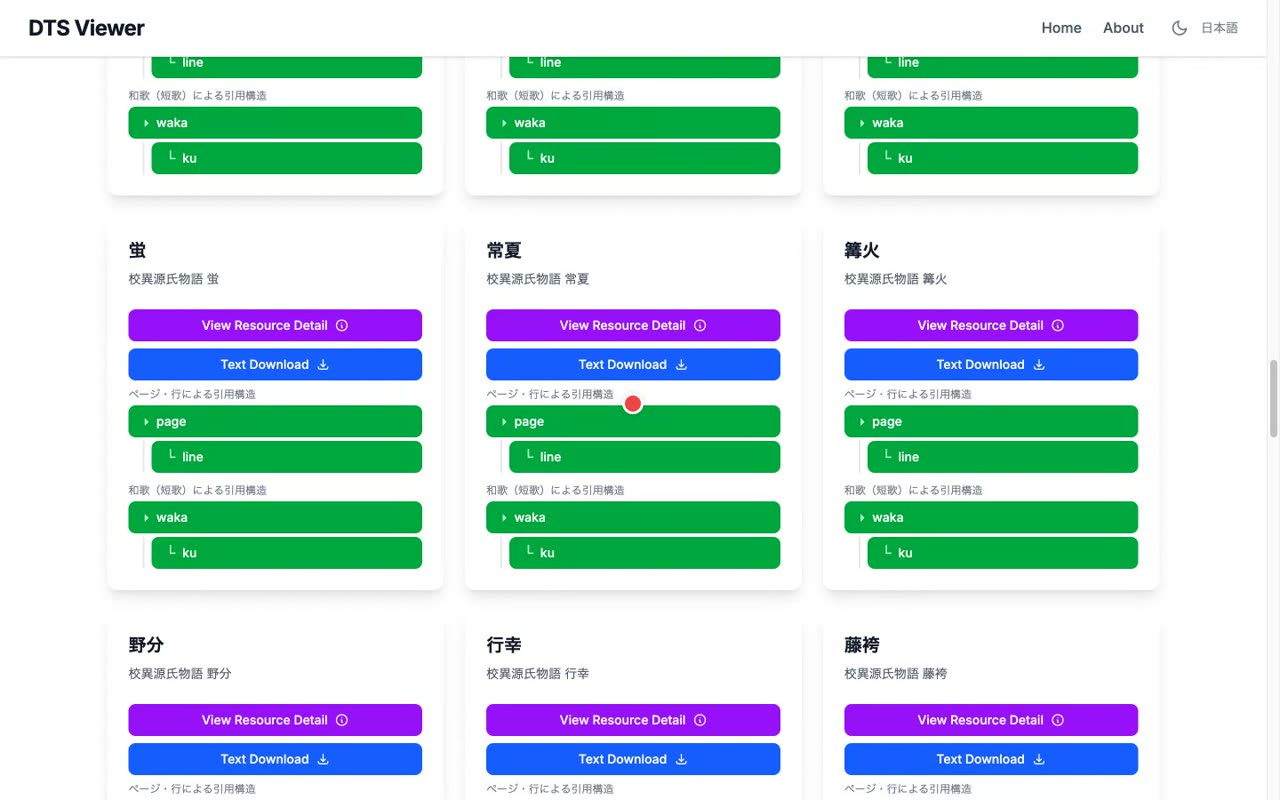
Each chapter card shows its citation structures — one by page and line, and another by waka poem. A citation structure is like an address into the text: it lets you reference the body in fixed units, such as a given line on a given page, or a particular line of a particular poem.
- 0:30Resource detail: metadata, download, navigation, identifier
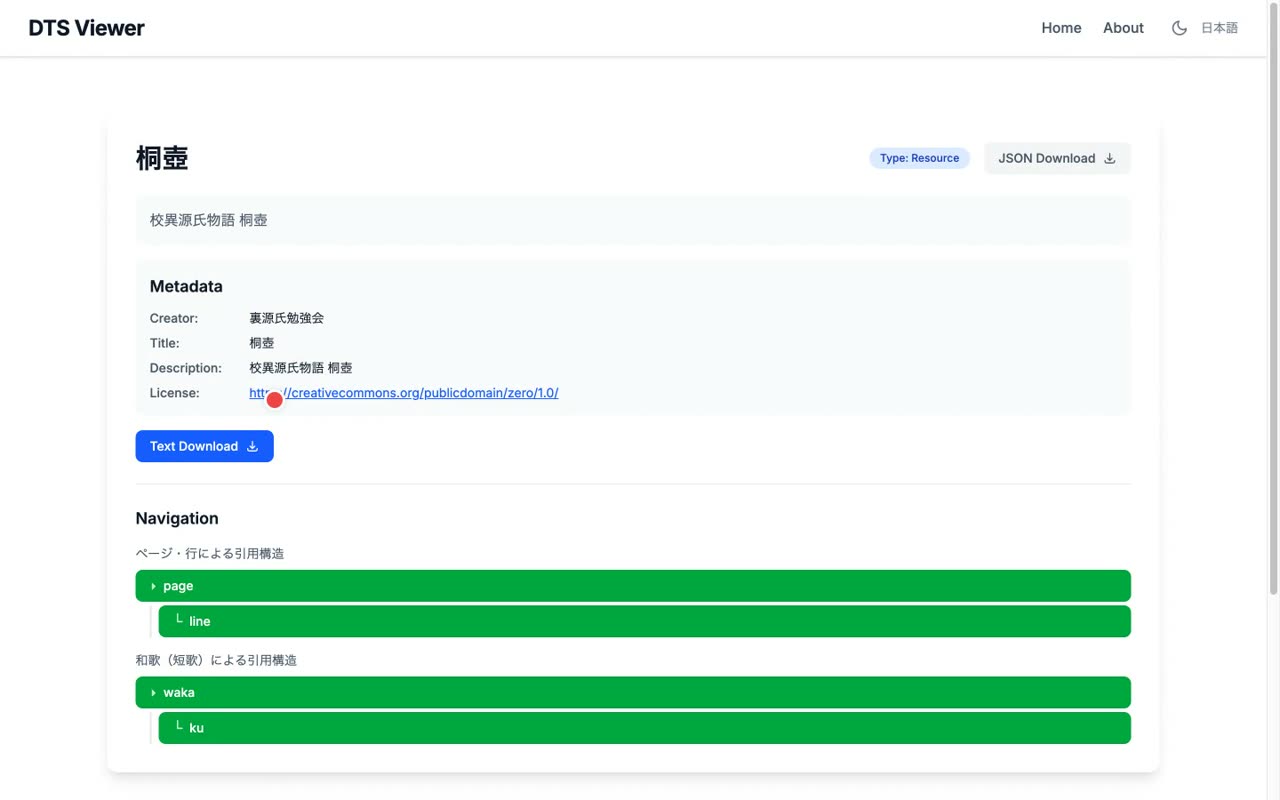
Opening the resource detail for Kiritsubo, we see the metadata, a text download, and the citation-structure navigation. The identifier is shown in urn form.
- 5
Navigation
The reference table that expands the citation structure, page→line hierarchy
Narration script
- 0:09Expand a structure: reference table (id / type / level / XML)
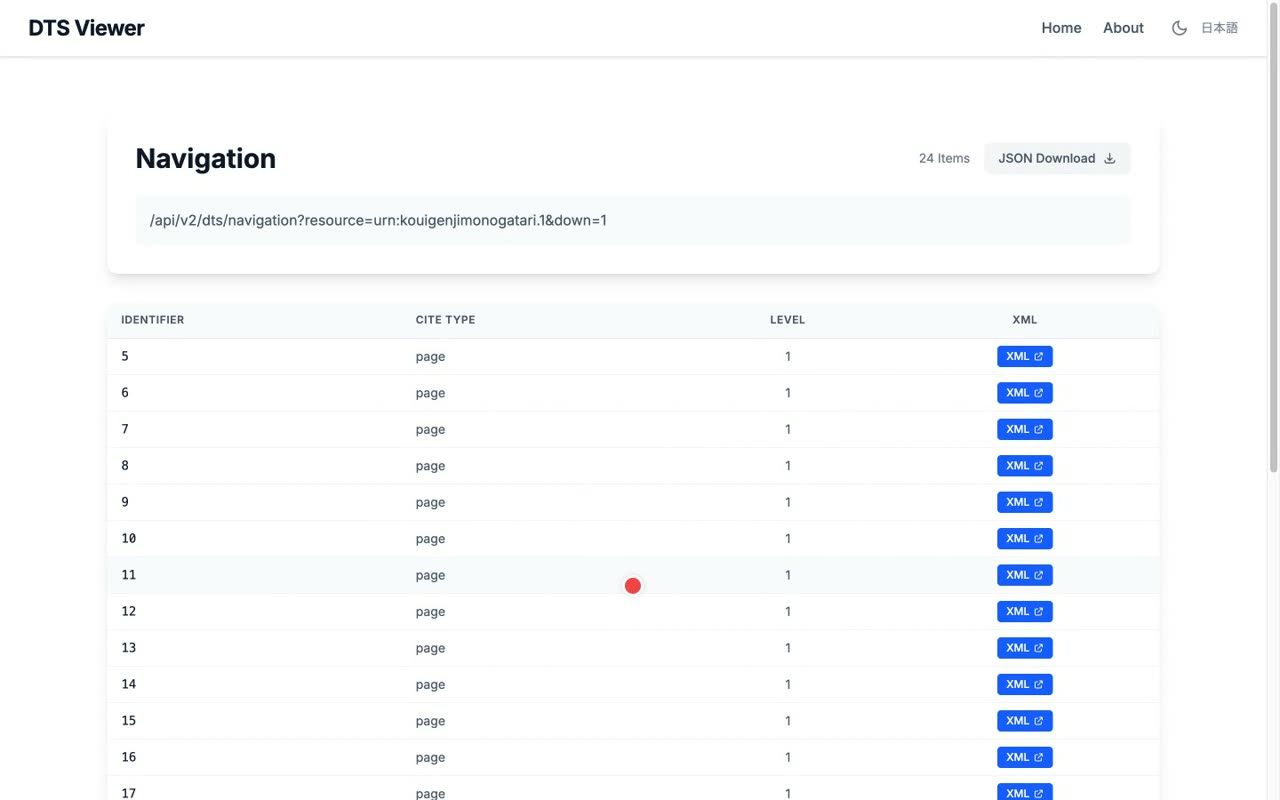
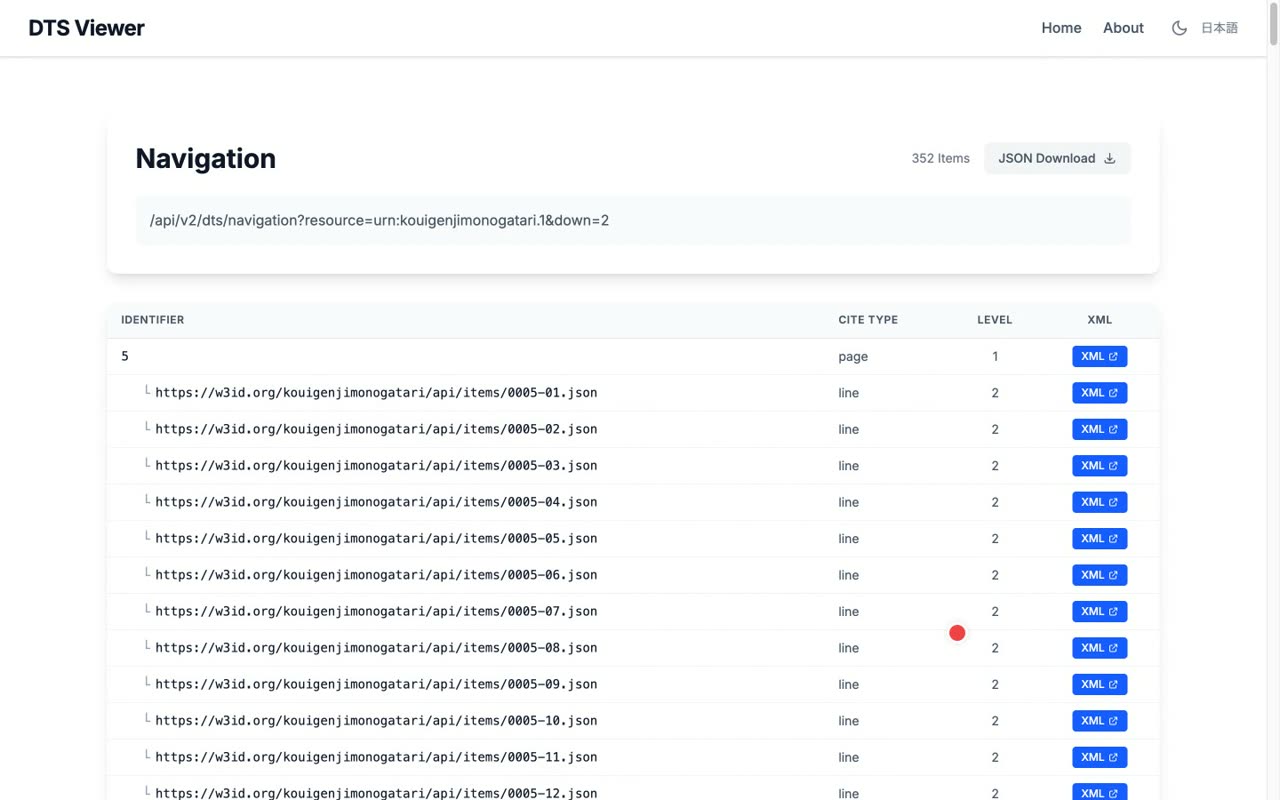
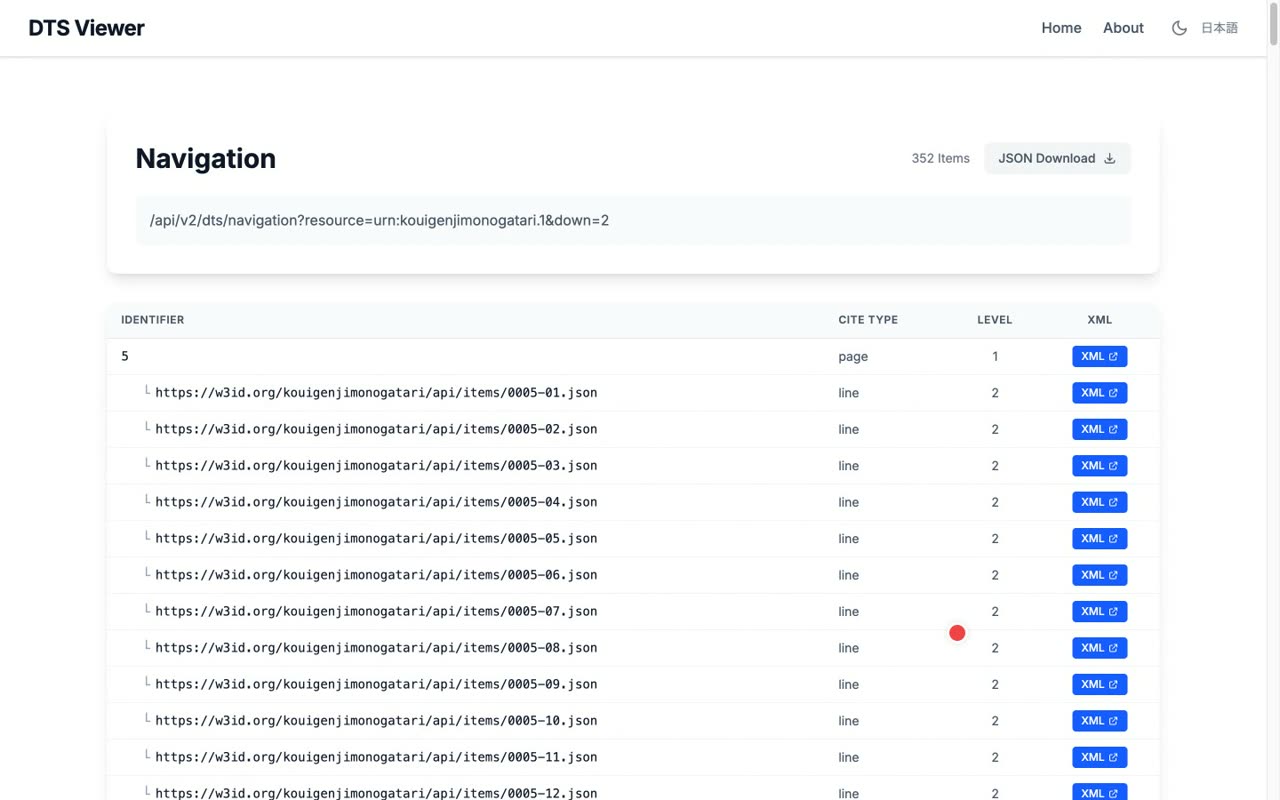
Pressing page in the navigation opens a list at the page level. The identifier, citation type, level, and a link to each page's XML are laid out in a table.
- 0:30Drill down: page to line, retrieve the text itself
Descending further, you go from page to line, reaching ever finer units. Using the XML or text download, you can retrieve the body text itself.
- 0:48From collection to a single line — one continuous structure
Being able to trace everything as one continuous structure, from the collection down to a single line of text, is the hallmark of DTS.
- 6
Wrap-up
Interoperability, language switching, and dark mode
Narration script
- 0:05Interoperability
The goal of DTS is interoperability. As long as texts are published following the agreed conventions, any project's texts can be navigated with the very same steps.
- 0:22Multilingual and dark mode
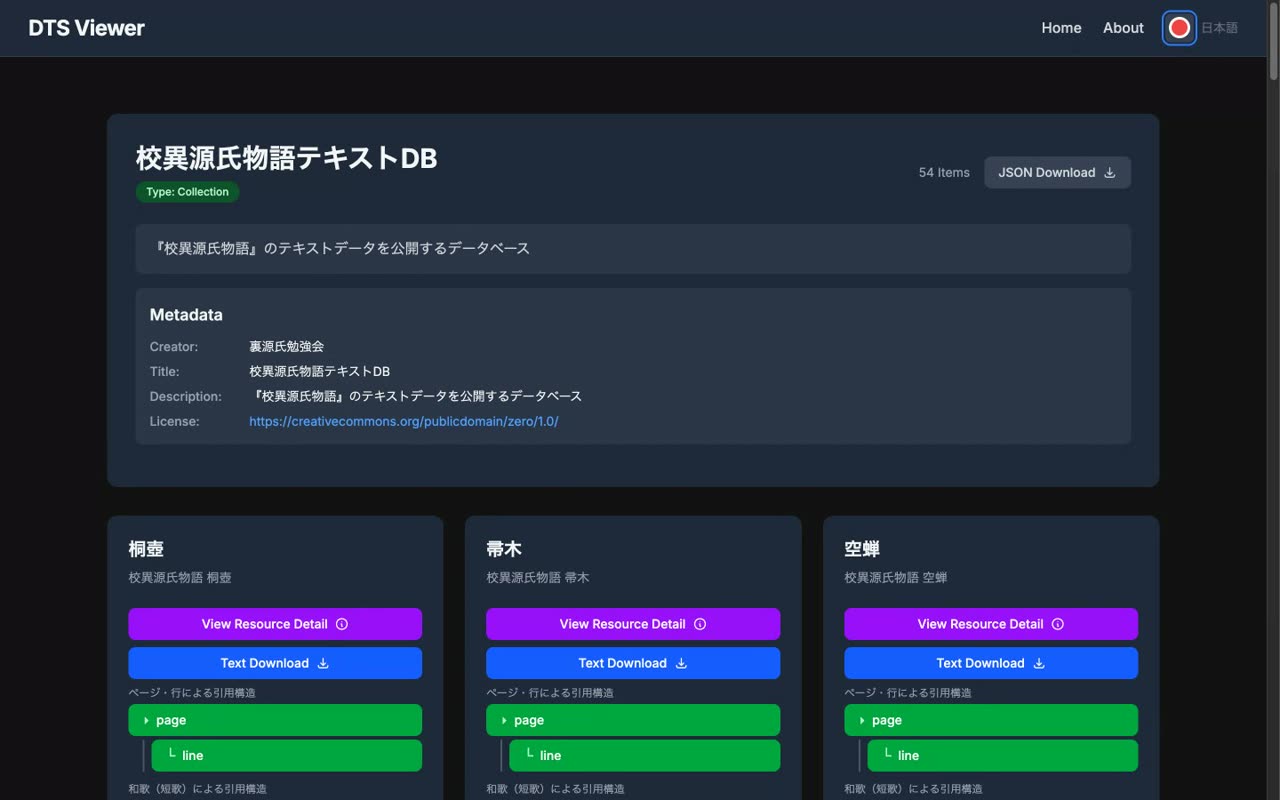
The viewer is multilingual — you can switch between Japanese and English from the top right — and a dark mode is available too.
- 0:40Try it with your own DTS URL
If this caught your interest, try entering your own project's DTS URL and explore. Links to the source and the specification are in the description. Thanks for watching!