How to use the IIIF 3D Viewer
A video walkthrough of the IIIF 3D Viewer, which displays and annotates 3D models in the browser from IIIF manifests.
Narrated walkthrough
Chapters
- 1
Intro & landing page
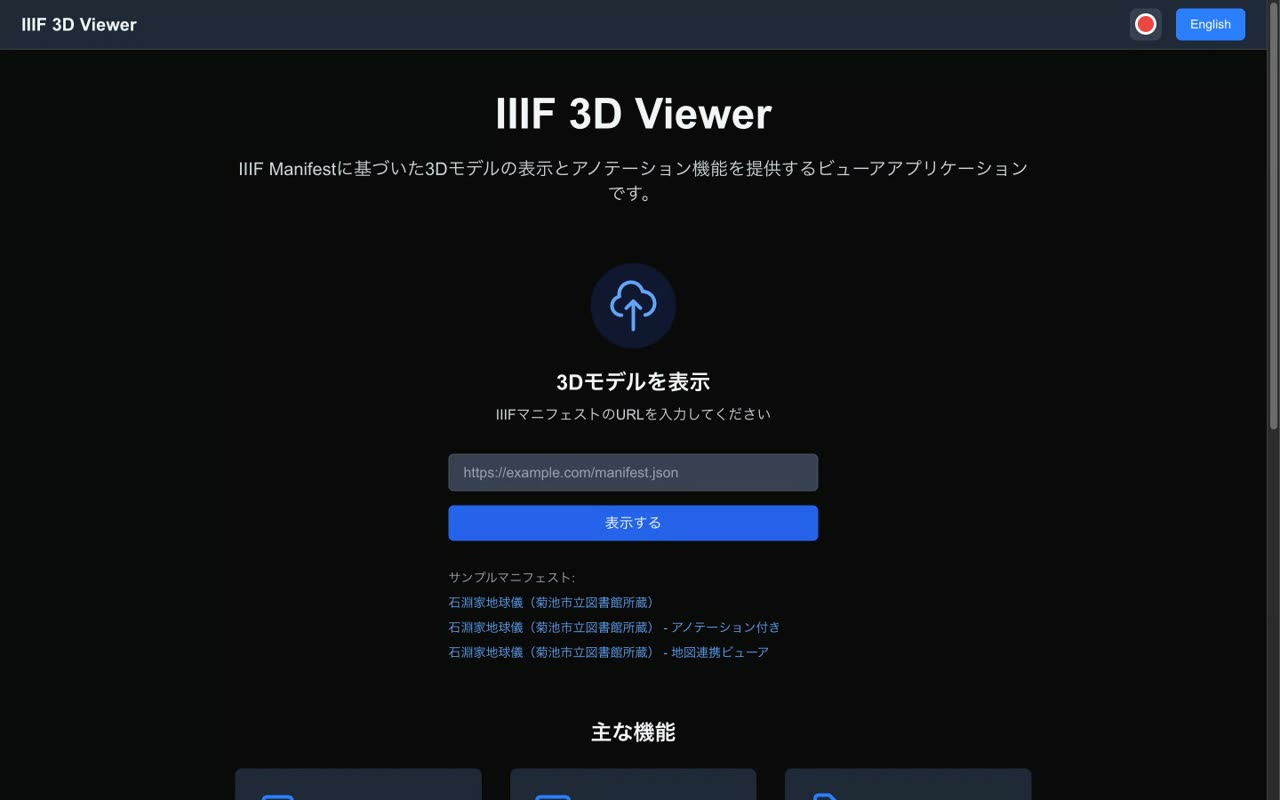
Overview of the IIIF 3D Viewer and its landing page (3D display / annotations / IIIF support)
Narration script
- 0:01IIIF 3D Viewer
IIIF 3D Viewer is a browser-based viewer for displaying 3D models described in IIIF manifests.
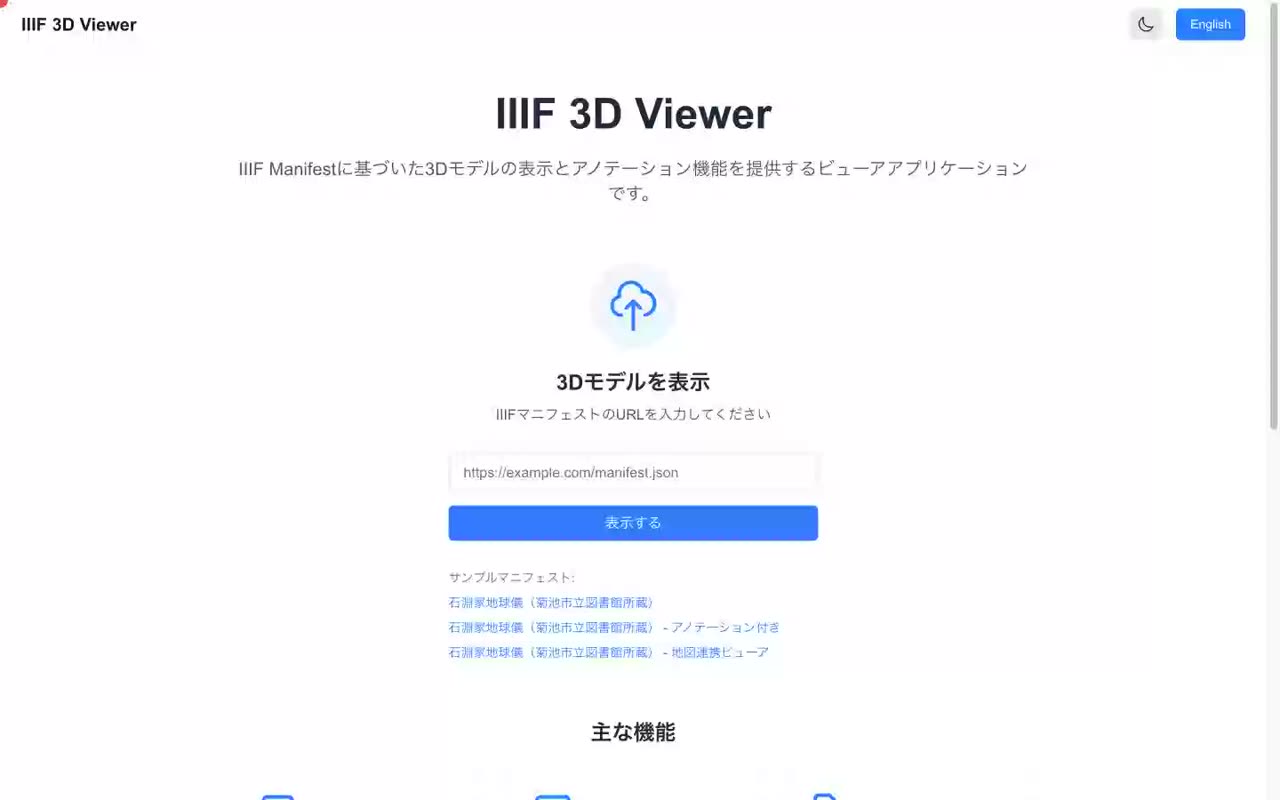
- 0:08Three features: 3D display, annotations, IIIF support
The landing page highlights three main features: interactive display of 3D models, annotations placed on those models, and conformance to the IIIF manifest format.
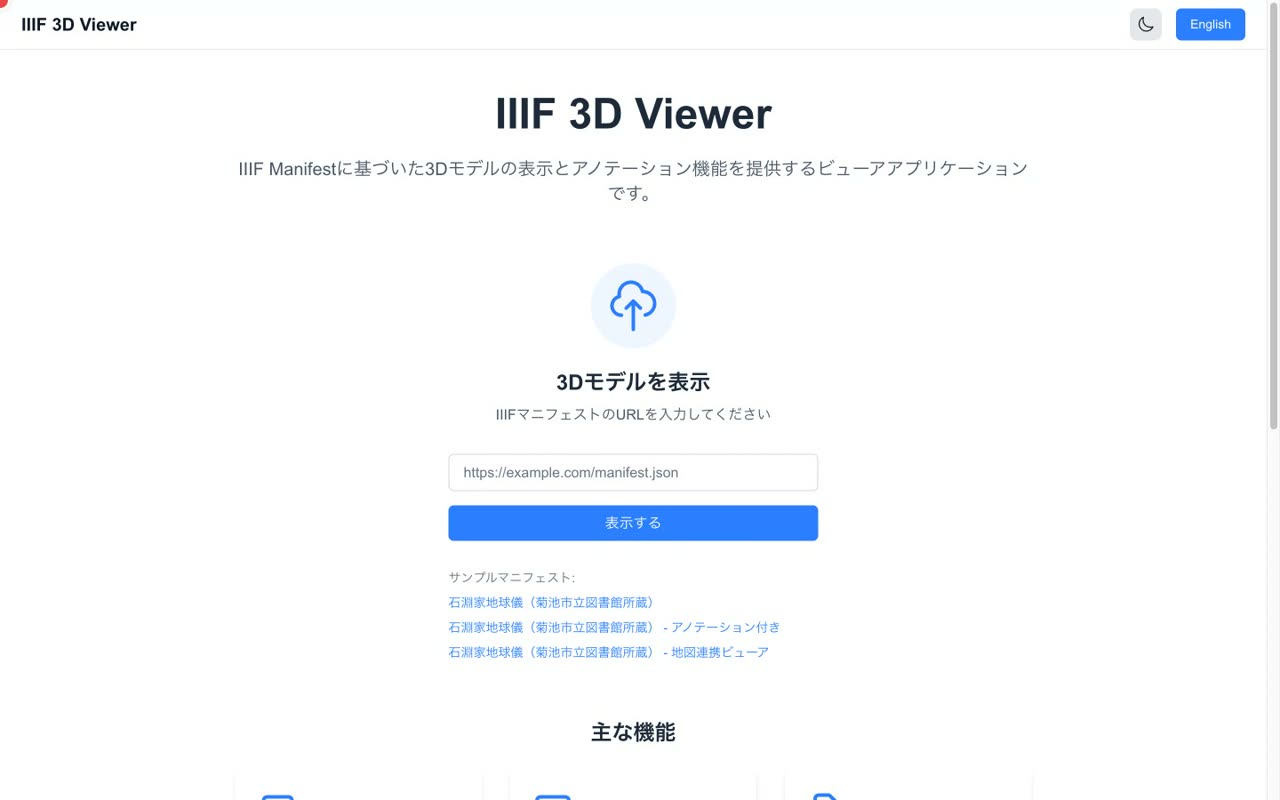
- 0:16Just enter a manifest URL
Using it is simple. Enter the URL of an IIIF manifest that contains a 3D model, and the viewer opens with the model displayed. Let us look at each step in turn.
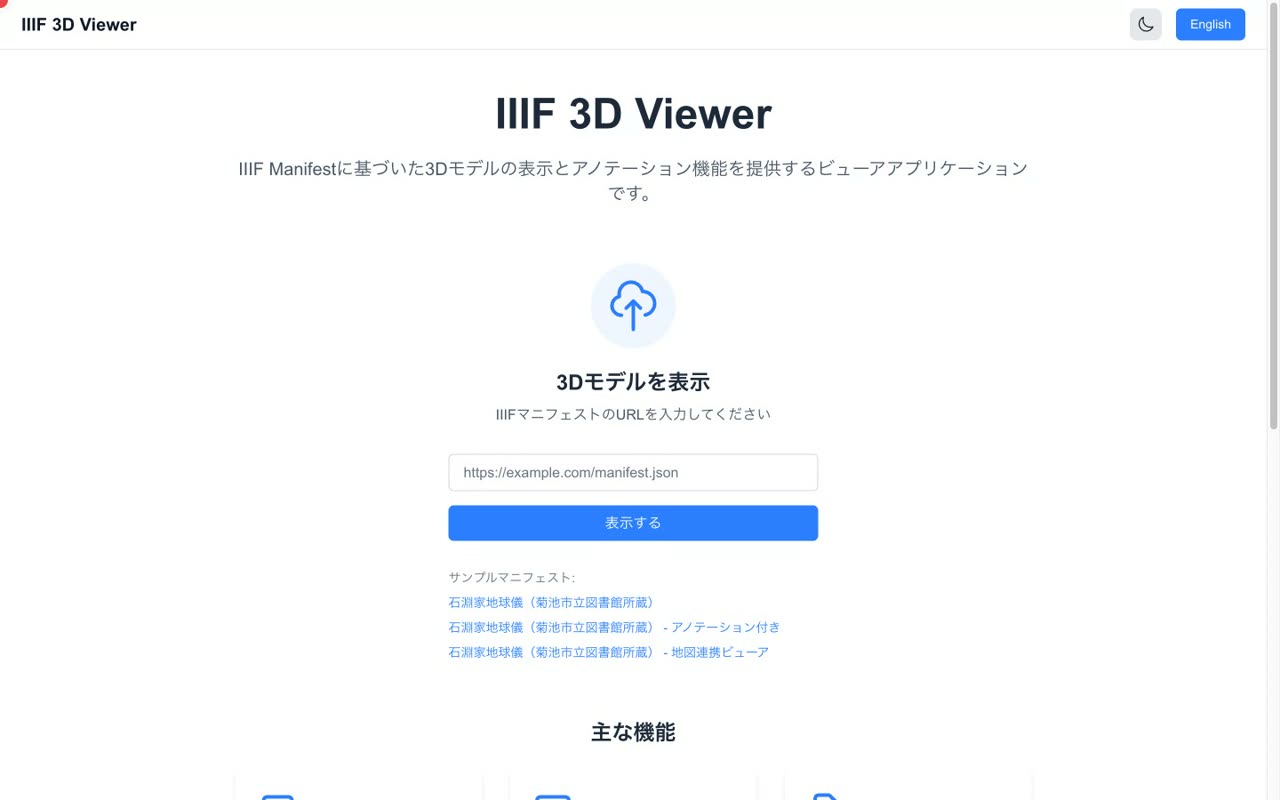
- 2
Loading a 3D model from a manifest
Entering a manifest URL, or loading a GLB model from a sample
Narration script
- 0:01Enter a IIIF manifest URL
On the landing page, enter the URL of a IIIF manifest that contains a 3D model into the input field.
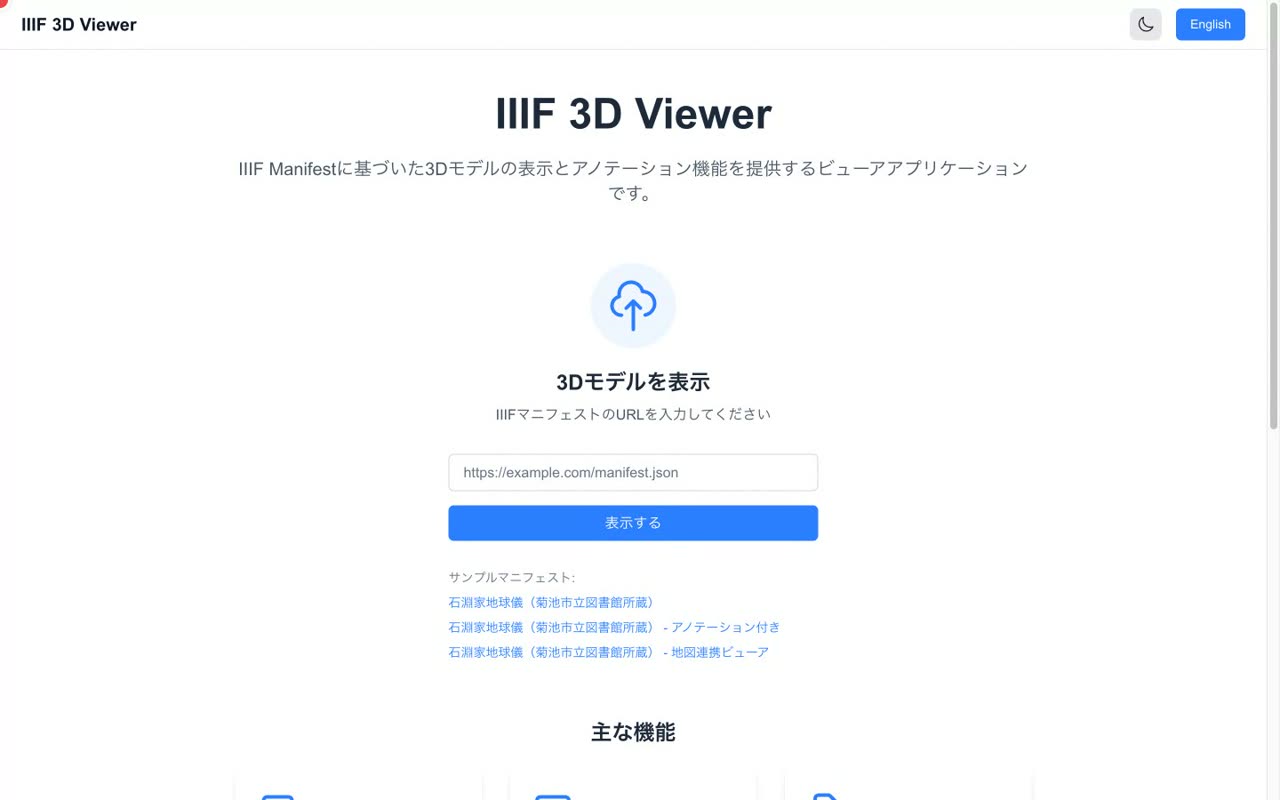
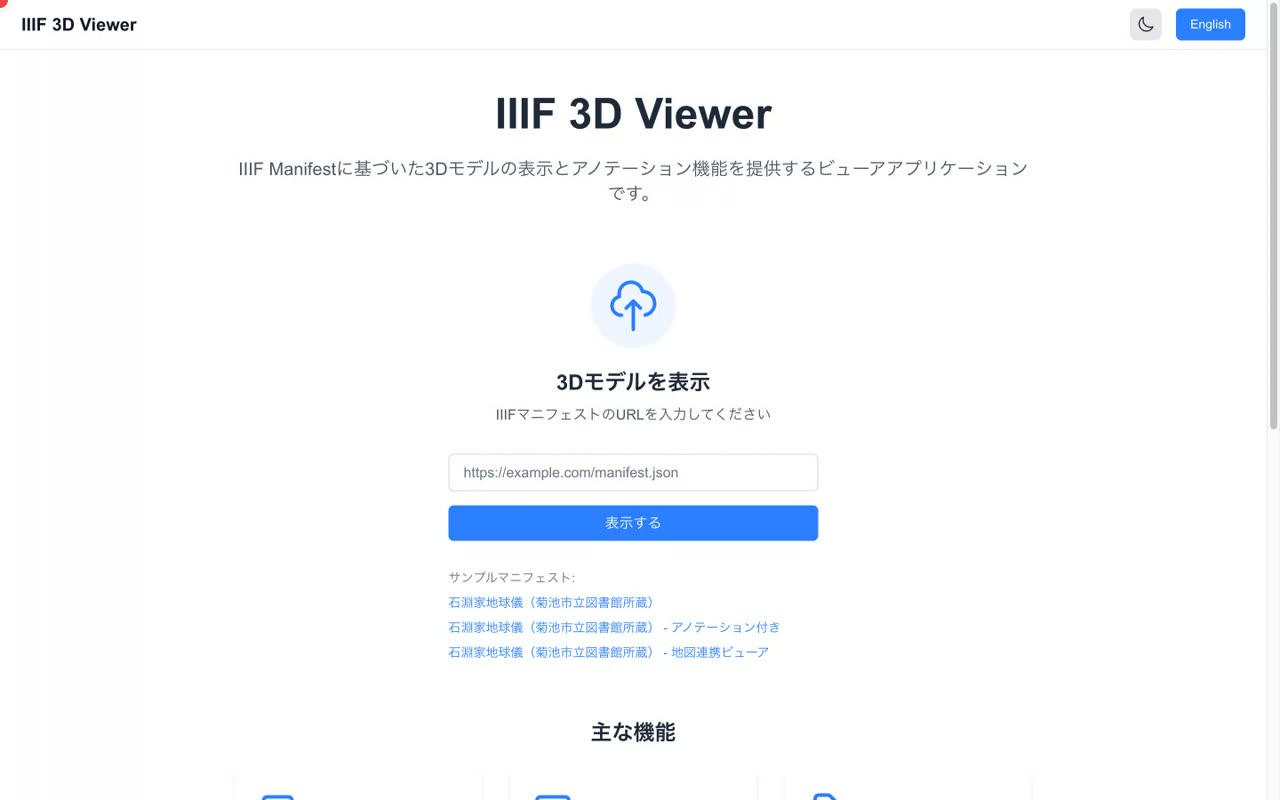
- 0:07Try it with a sample manifest
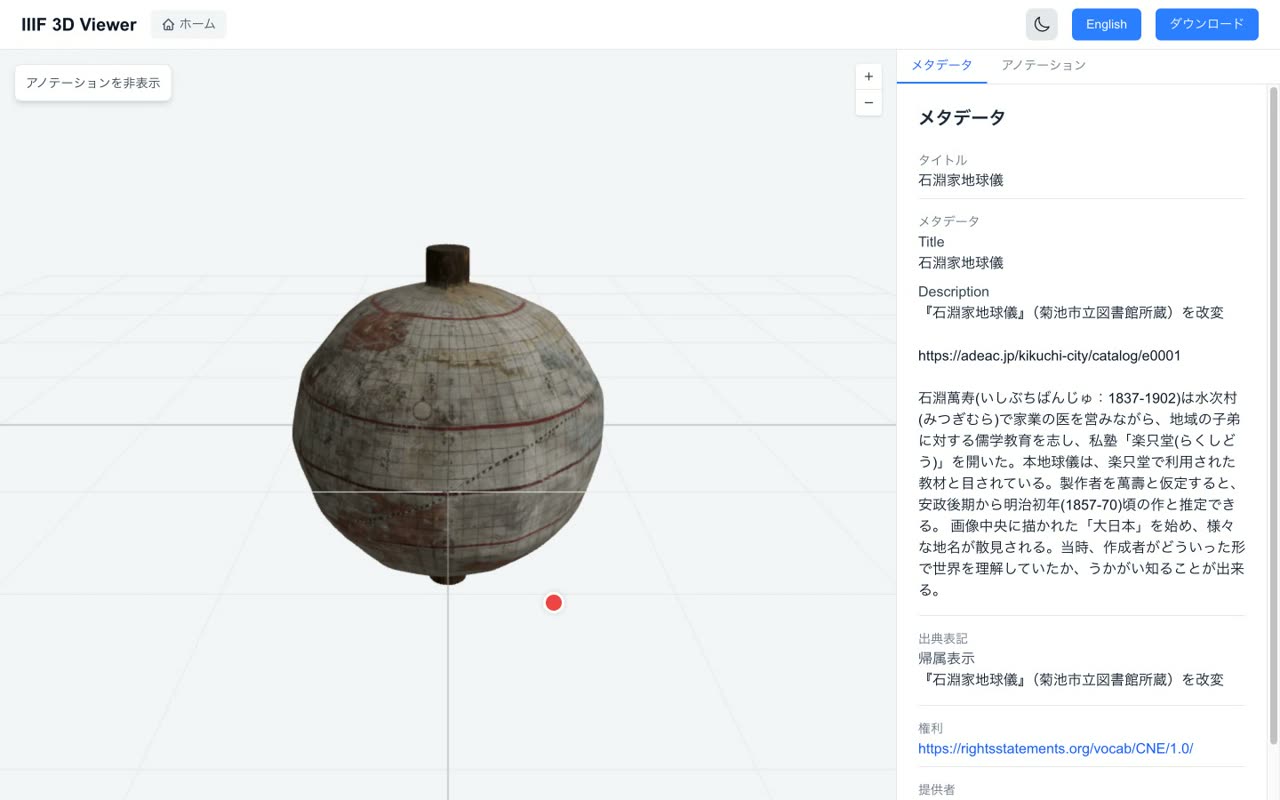
Here we use one of the bundled sample manifests. It is a 3D model of the Ishibuchi family globe, held by the Kikuchi City Library.
- 0:15The 3D model is displayed
The viewer opens and the 3D model is loaded. The model fills most of the screen, with an information panel on the right.
- 3
Navigating the model & metadata
Drag to rotate, zoom, and view IIIF-standard metadata
Narration script
- 0:02Drag to rotate freely
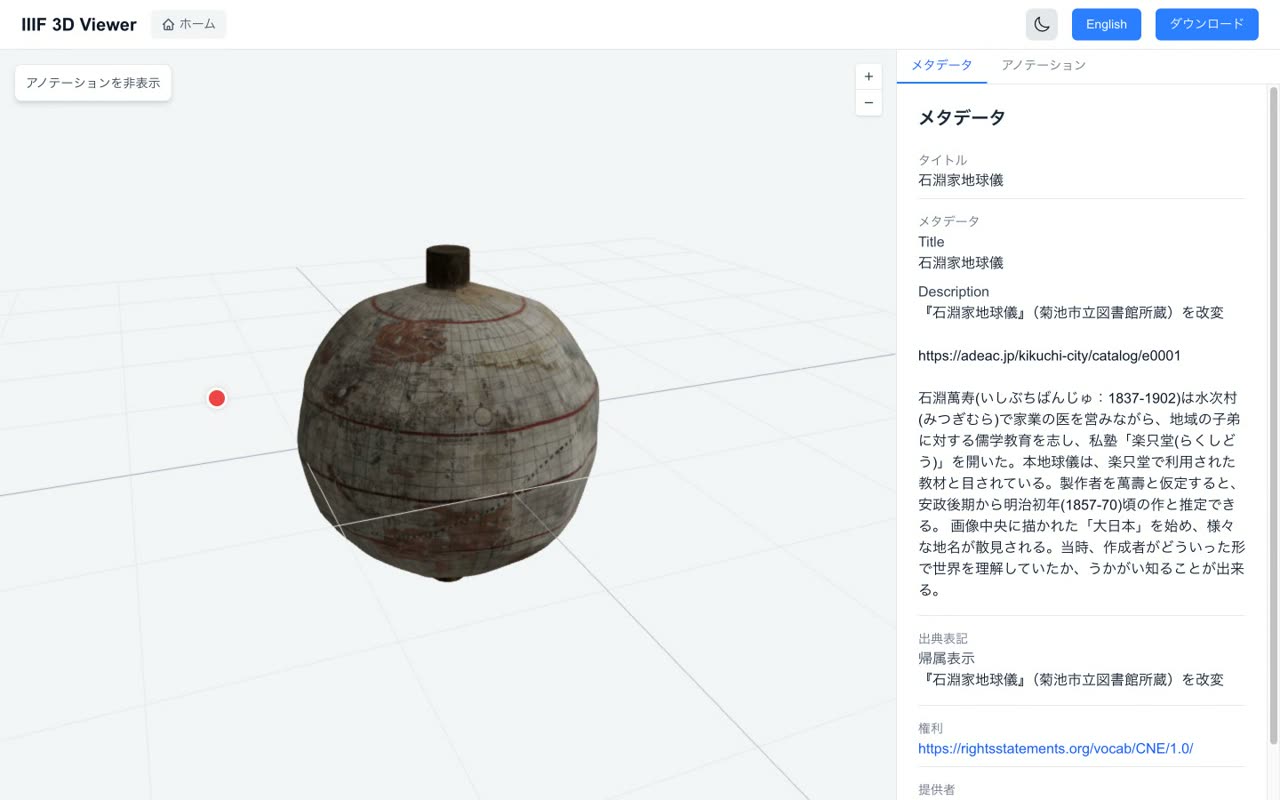
You can rotate the 3D model freely by dragging it with the mouse, so you can observe the object from any angle.
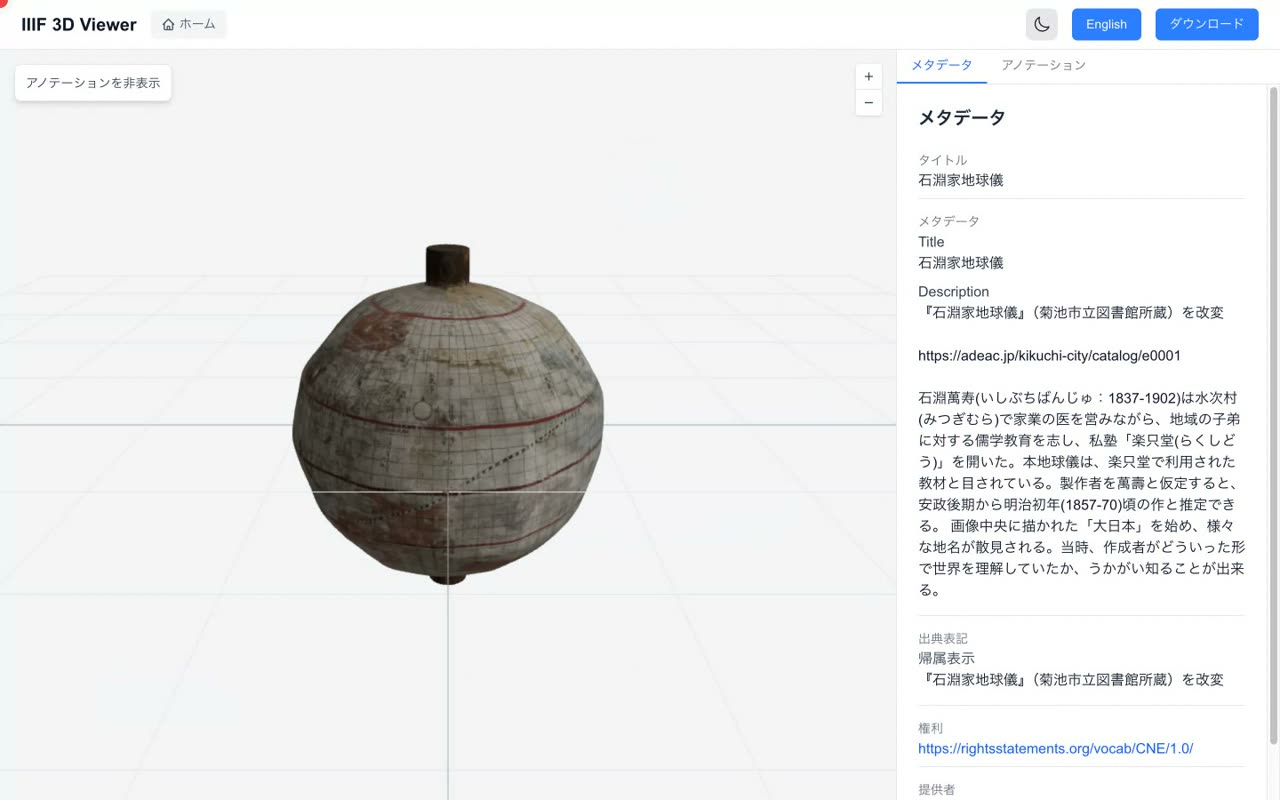
- 0:21Zoom in and out with the buttons
Use the plus and minus buttons at the top right, or the mouse wheel, to zoom in and out and inspect the fine details.
- 0:31The metadata panel
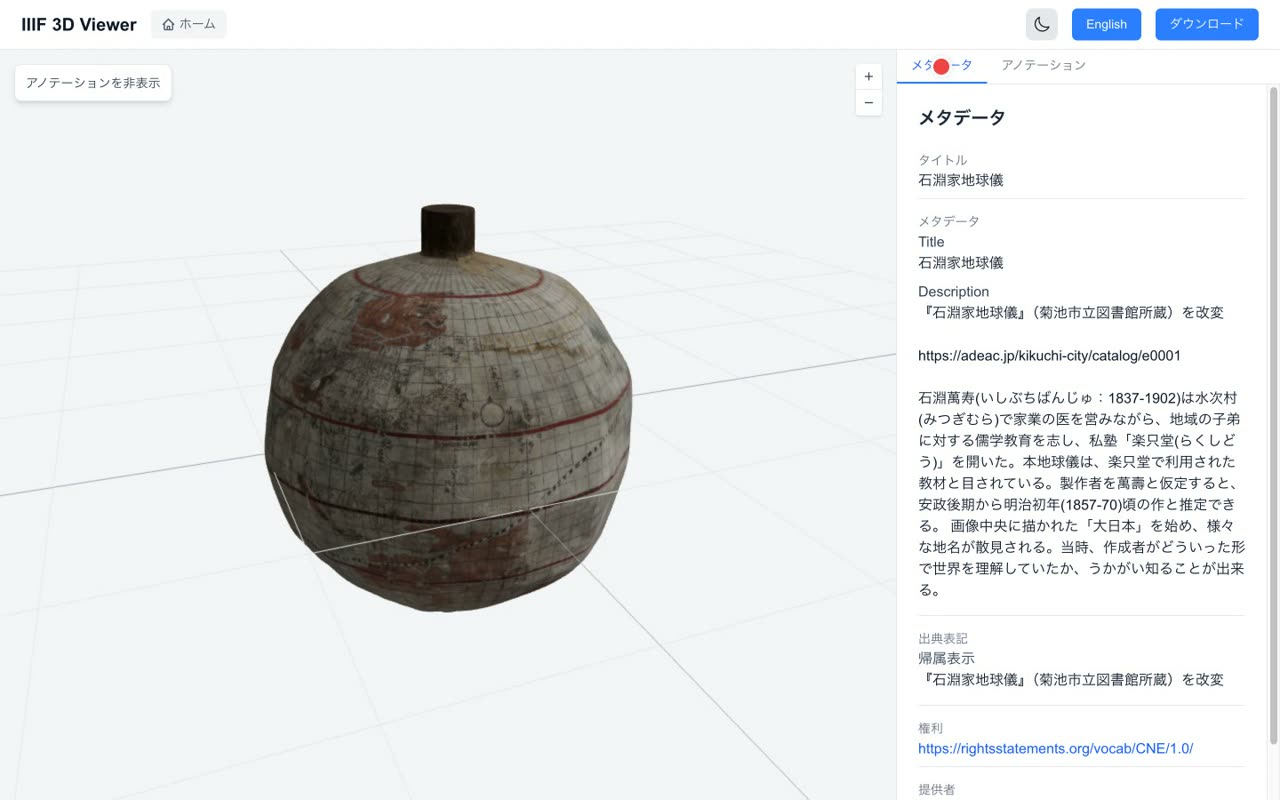
The panel on the right shows the metadata described in the manifest. You can check the title, description, attribution, and rights information in the standard IIIF format.
- 4
Annotations
Numbered markers on the model, a list, and camera moves on card click
Narration script
- 0:01Annotation markers on the model
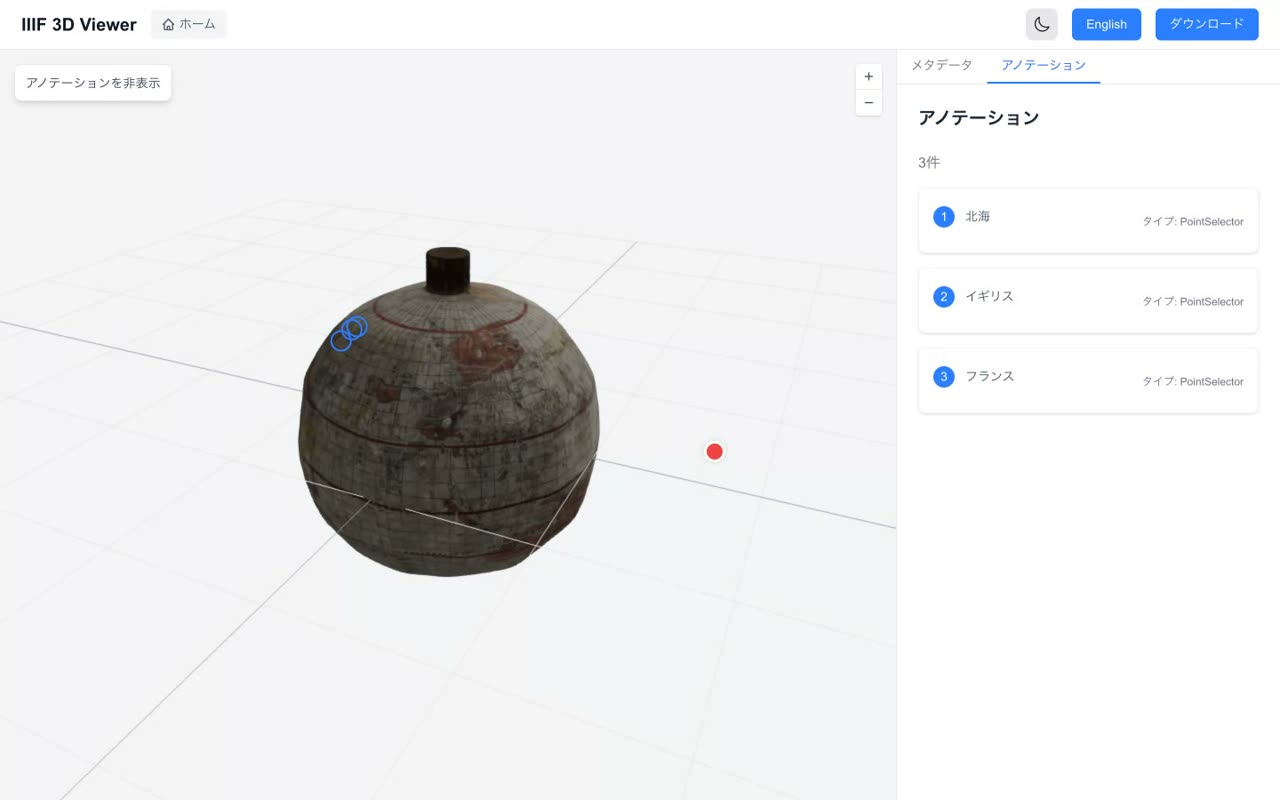
When you open a manifest that has annotations, numbered markers appear at specific positions on the 3D model.
- 0:15The annotation list
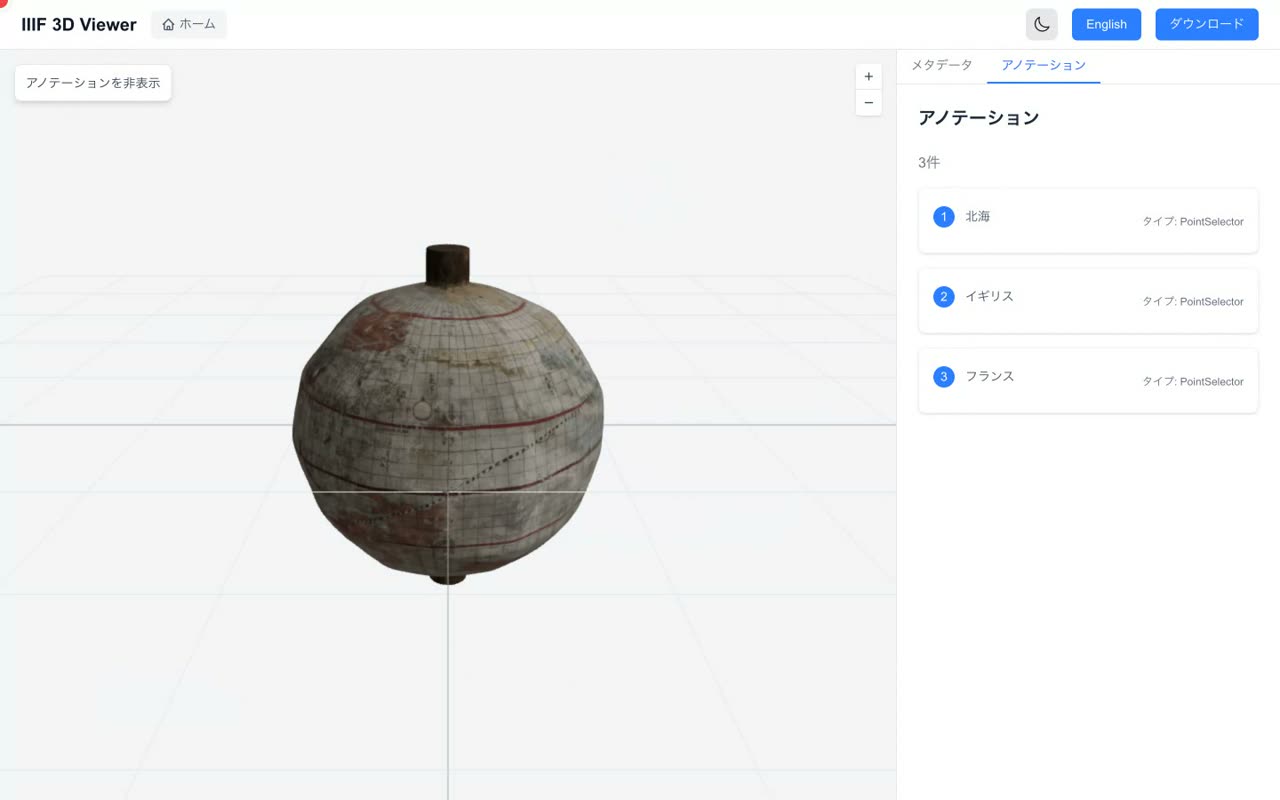
The annotations tab on the right lists every annotation. This sample contains three comments.
- 0:24Click a card to focus on it
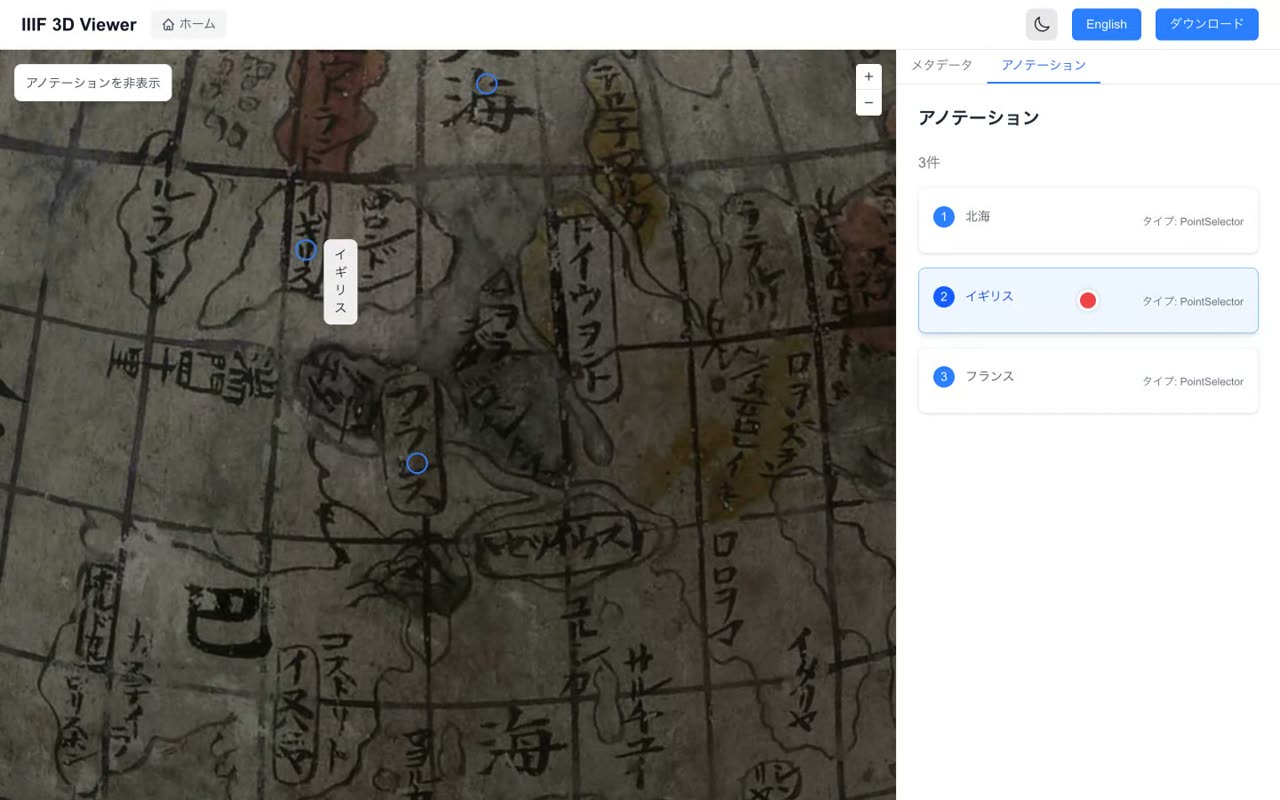
When you click a card in the list, the camera moves smoothly to the matching marker so you can focus on that position.
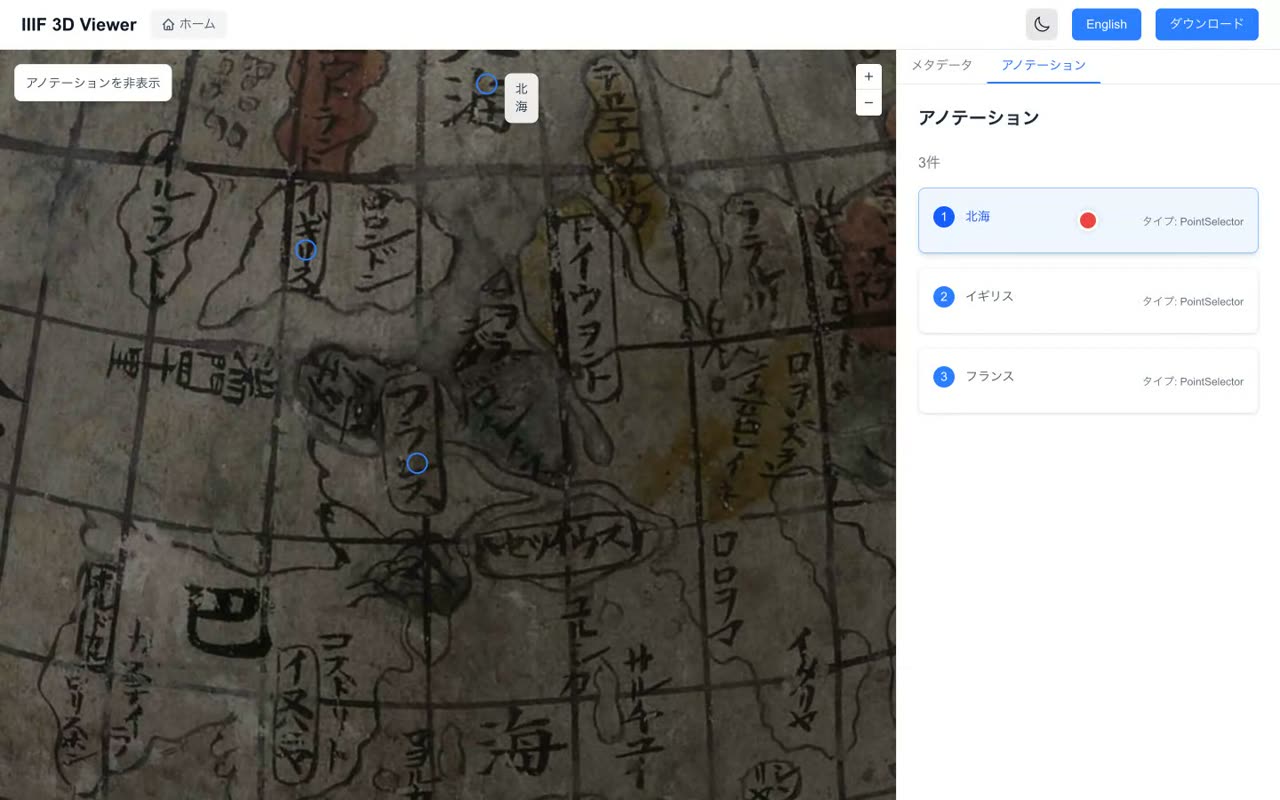
- 0:32Linking positions with comments
In this way you can manage positions on the 3D model together with descriptions and comments. The annotations are written in the standard Web Annotation format.
- 5
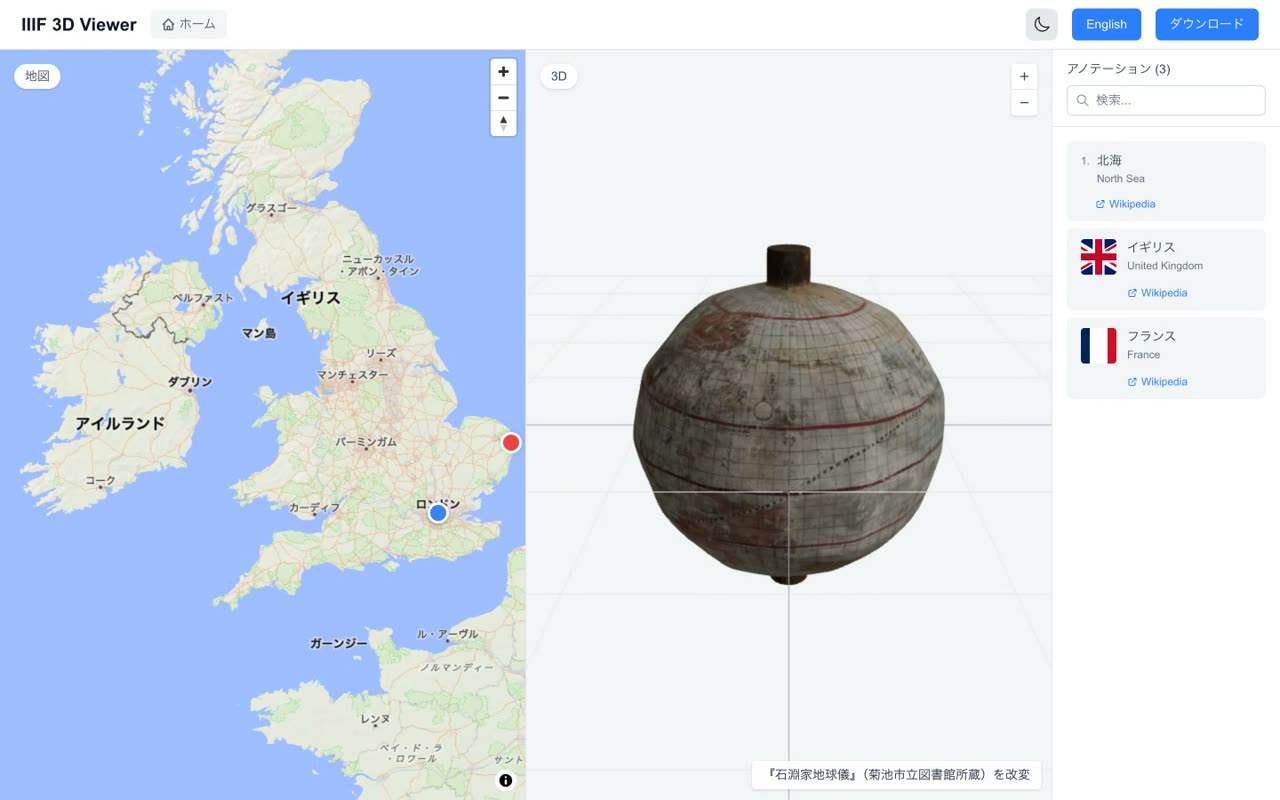
Map-linked viewer (georeference)
Split view of a map (MapLibre) and the 3D model, with georeferenced annotations
Narration script
- 0:04The map-linked viewer
Another feature is the map-linked viewer, which shows a map and the 3D model side by side.
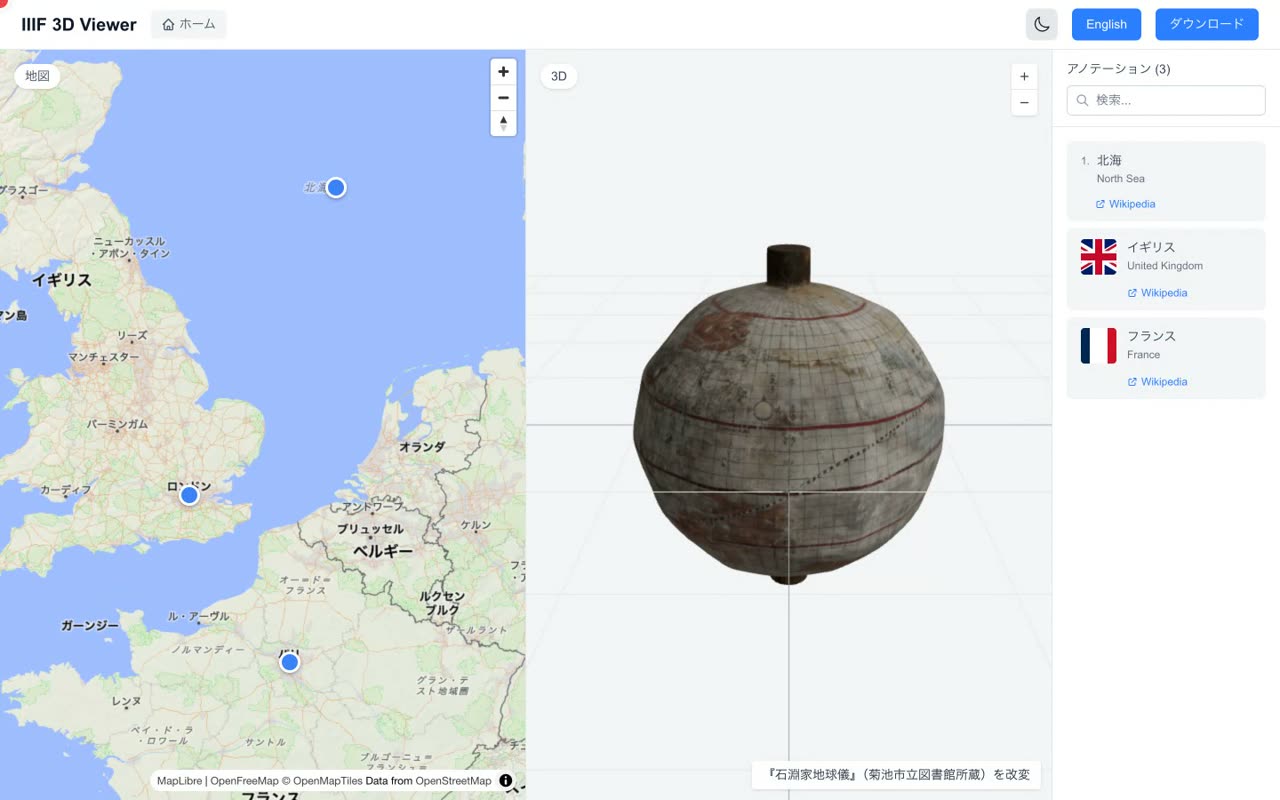
- 0:09Linking map locations with the 3D model
For a resource such as a globe, you can link the place names drawn on the model with real geographic coordinates. The markers on the map represent georeferencing annotations.
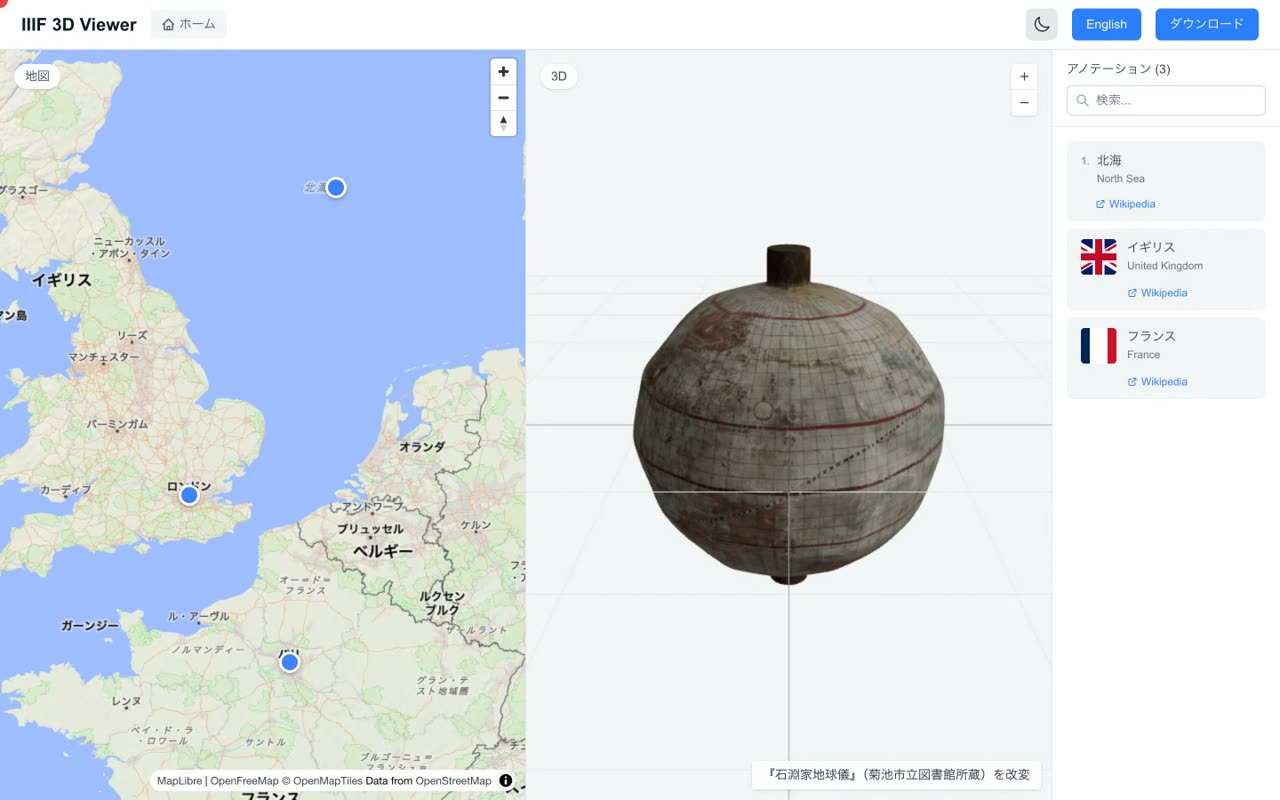
- 0:25Search and list annotations in the side panel
The panel on the right lets you list annotations and search them by keyword. You can move back and forth between the map and the 3D model as you read the resource.
- 6
Language switch & dark mode
Switching Japanese ⇄ English and toggling light ⇄ dark themes
Narration script
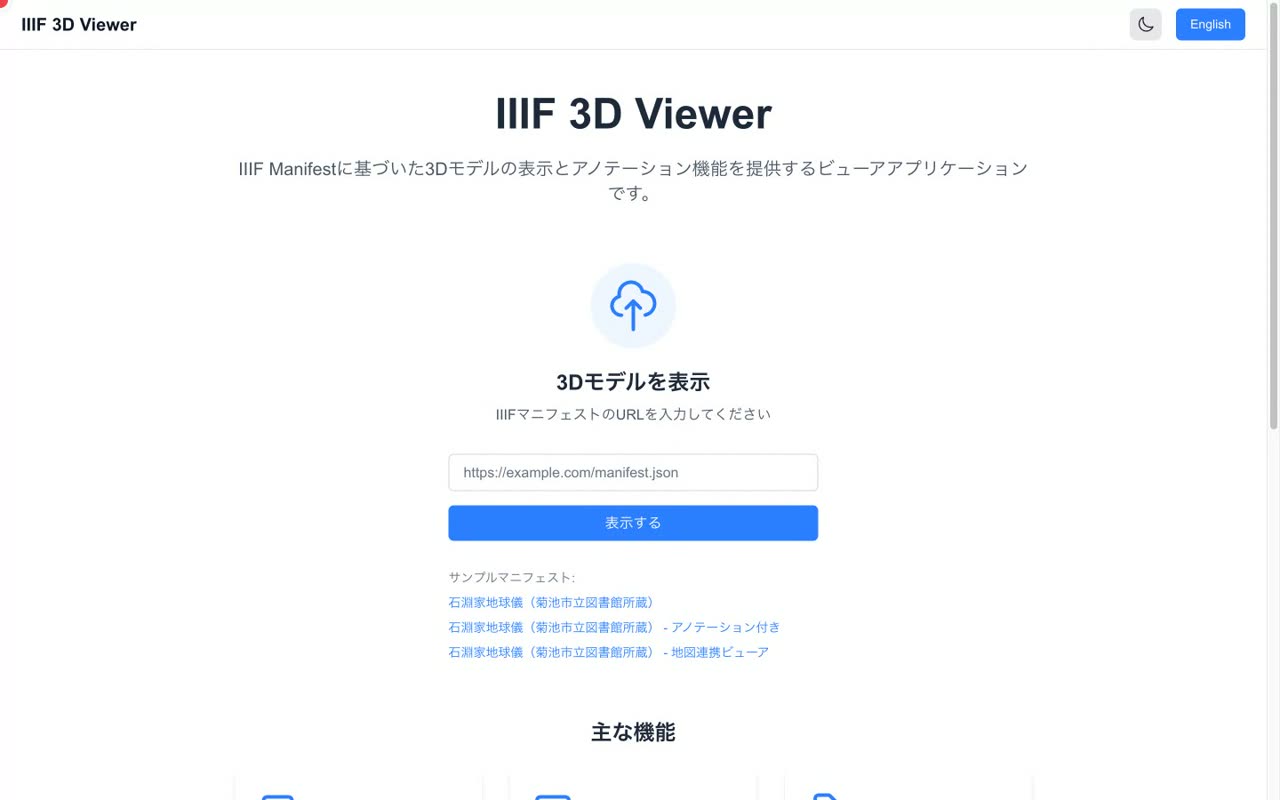
- 0:01Switching Japanese / English
The button on the right of the header switches the display language.
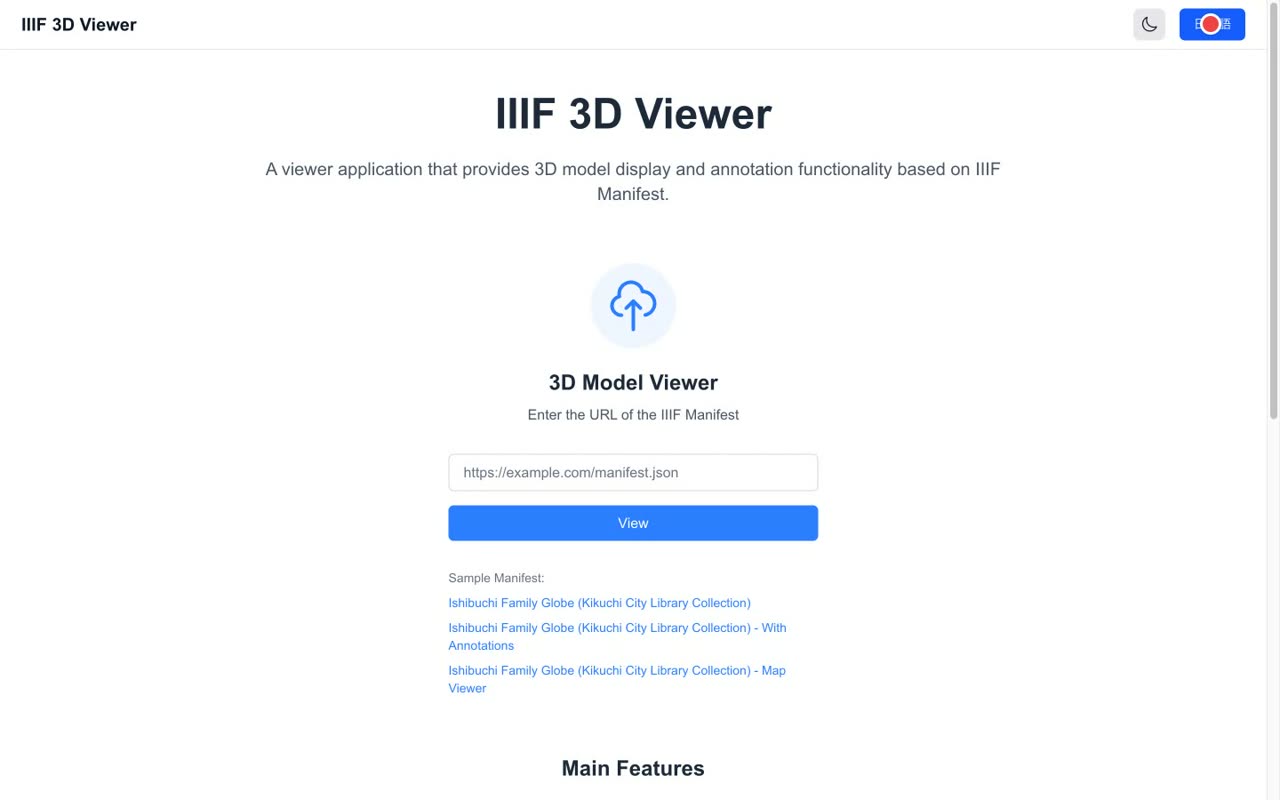
- 0:07English interface
Pressing the button switches the whole screen to English. Press it again to return to Japanese.
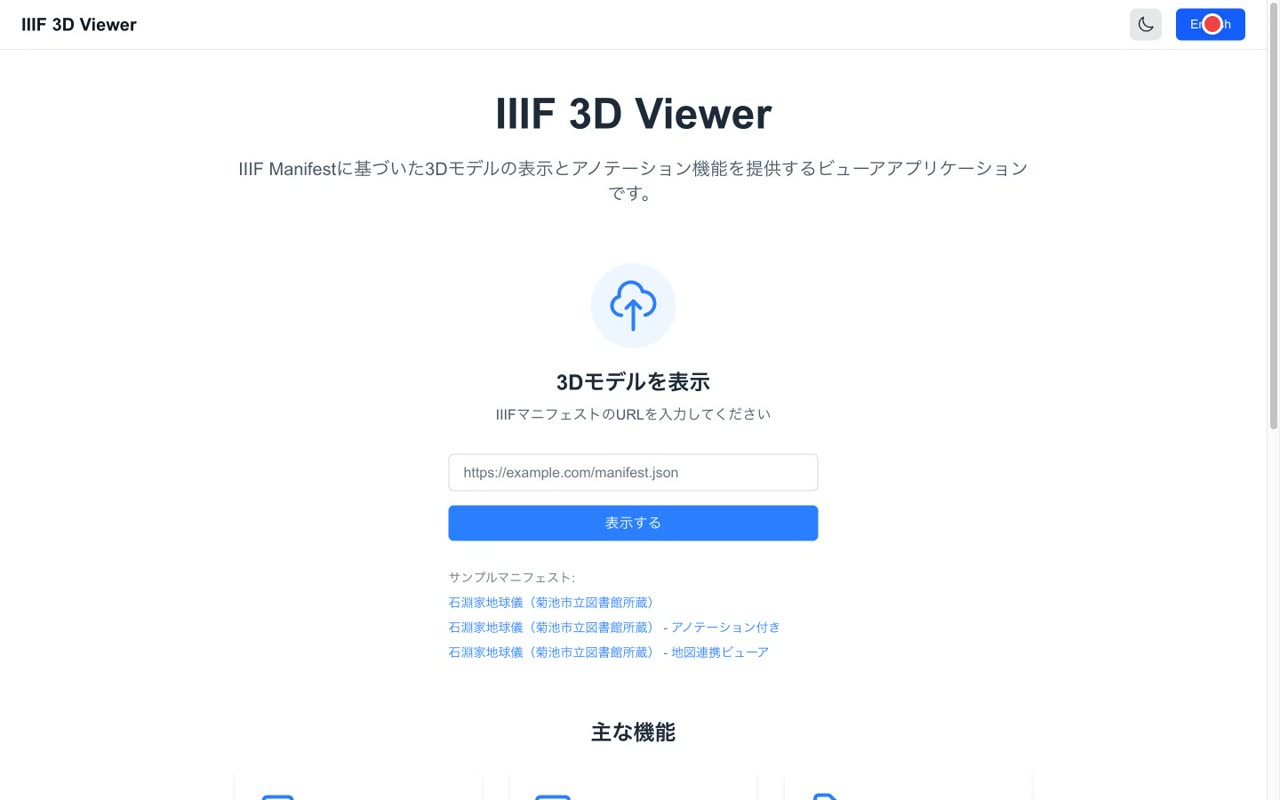
- 0:14Toggling dark mode
The icon button next to it switches between light mode and dark mode.
- 0:20Dark mode
In dark mode the whole screen, including the background of the 3D model, uses a darker, eye-friendly palette. The setting is remembered by the browser.
- 7
Wrap-up & references
Links to the IIIF 3D extension spec, sample manifests, and the source
Narration script
- 0:01Summary
IIIF 3D Viewer lets you display 3D models based on IIIF manifests, annotate them, and link them with maps, all within the browser.
- 0:08References: IIIF 3D specs and articles
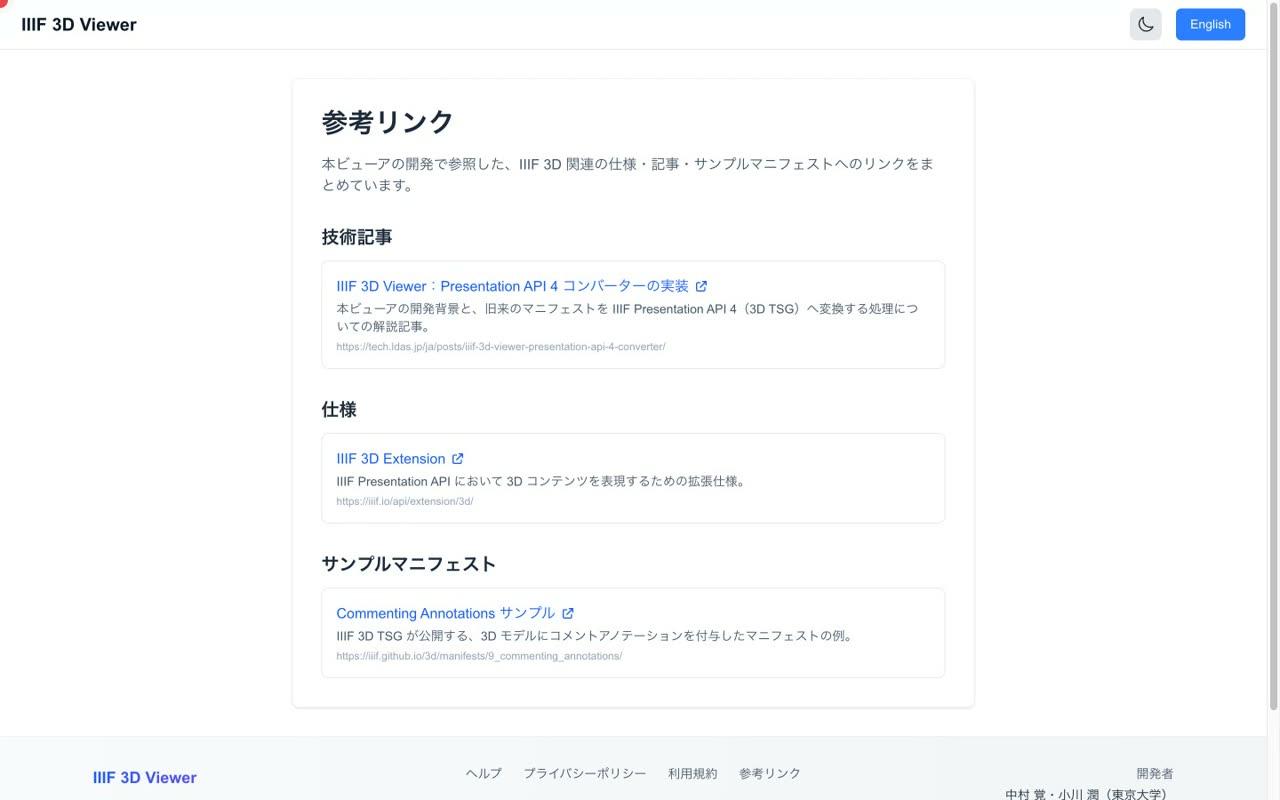
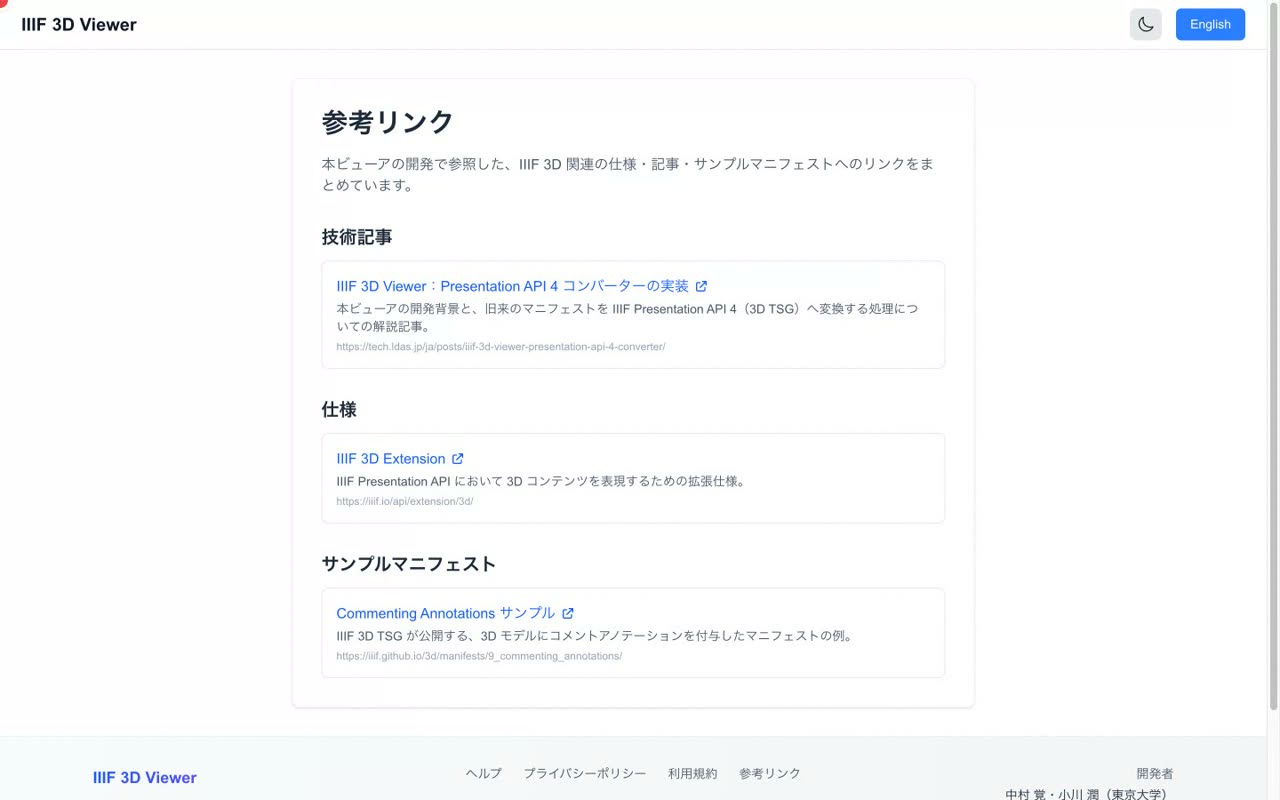
The references page collects links to the IIIF 3D extension specification, technical articles, and sample manifests that were consulted while developing the viewer.
- 0:15github.com/nakamura196/iiif-3d-viewer
The source code is published under the MIT license. See the links in the description for details. Please give it a try.