Overview
I tried out Nuxt 3 and Decap CMS, so here are my notes.

 decapcms.org
Preparing the Nuxt 3 Project
I referred to the following for adding Decap CMS to an existing site.
First, prepare a Nuxt 3 project that includes the nuxt/content module.
Here is an example of the source code.
 GitHub
The following two files were created.
# when using the default proxy server port
local_backend: true

# This line should *not* be indented
publish_mode: editorial_workflow

backend:
  name: git-gateway
  branch: main # Branch to update (optional; defaults to master)

media_folder: public/img
public_folder: /img

collections:
  - name: 'blog'
    label: 'Blog'
    folder: 'content/blog'
    format: 'frontmatter'
    create: true
    slug: '{{year}}-{{month}}-{{day}}-{{slug}}'
    fields:
      - { label: 'Title', name: 'title', widget: 'string' }
      - { label: 'Publish Date', name: 'date', widget: 'datetime' }
      - { label: 'Description', name: 'description', widget: 'string' }
      - { label: 'Body', name: 'body', widget: 'markdown' }
<!DOCTYPE html>
<html>
  <head>
    <meta charset="utf-8" />
    <meta name="viewport" content="width=device-width, initial-scale=1.0" />
    <title>Content Manager</title>
    <!-- Include the script that enables Netlify Identity on this page. -->
    <script src="https://identity.netlify.com/v1/netlify-identity-widget.js"></script>
  </head>
  <body>
    <!-- Include the script that builds the page and powers Decap CMS -->
    <script src="https://unpkg.com/decap-cms@^3.0.0/dist/decap-cms.js"></script>
  </body>
</html>
Then, it was pushed to GitHub.
Configuration on Netlify
Access the following and log in.

 app.netlify.com
Select the repository that was just pushed to GitHub and deploy it.

At this point, the Build command and Publish directory were changed.

As a result, it was deployed to the following.
Enable Identity and Git Gateway
Referring to the following, additional configuration is performed on Netlify.
First, enable the Identity service from Settings > Identity.
Next, configure Registration preferences and External providers as needed.

Finally, enable Git Gateway.

Then, accessing the following allowed me to log in.

Content is added as follows.
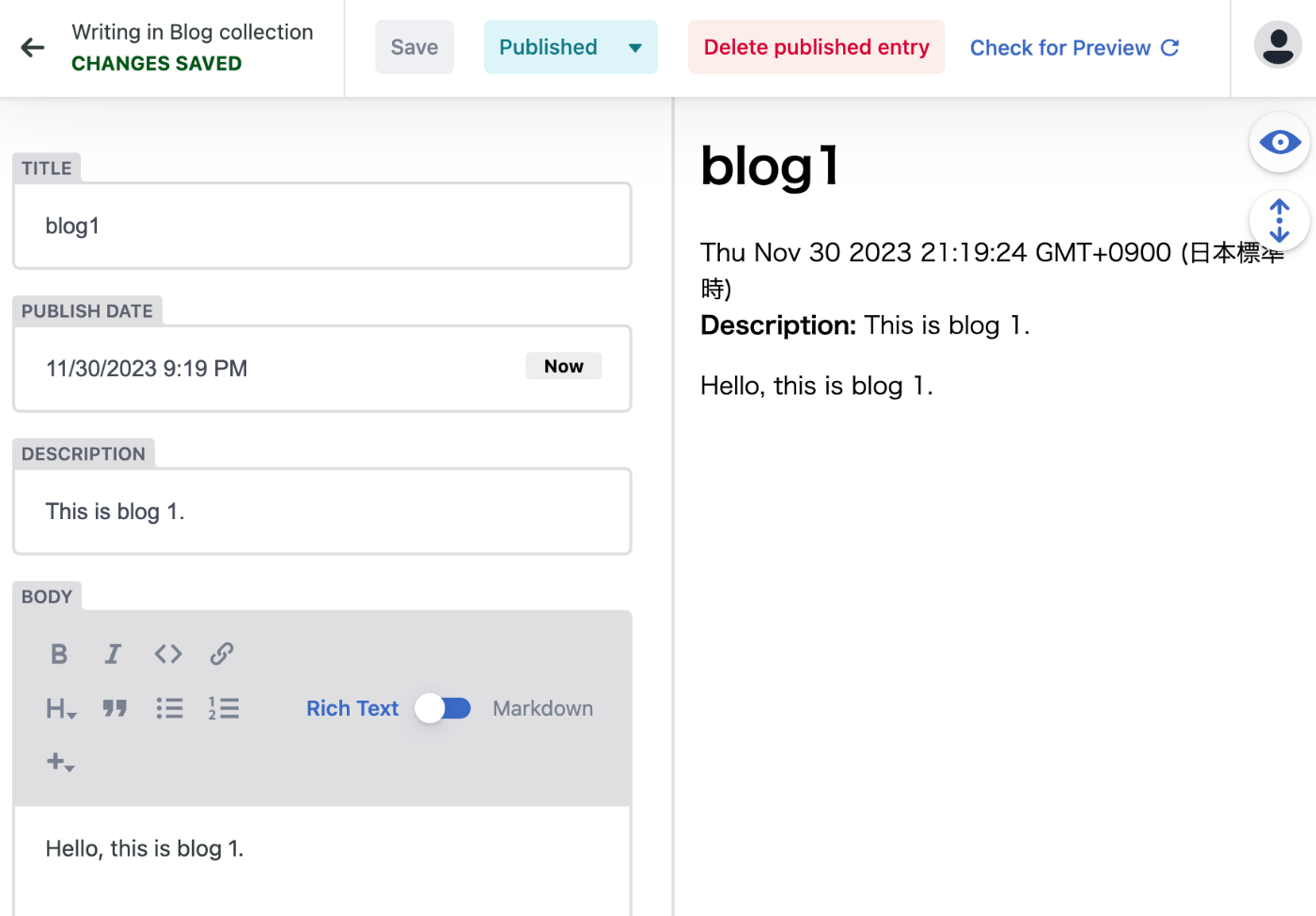
As a result, a markdown file was created in the GitHub repository as shown below.

Furthermore, a page was added as follows.
Trying the CMS in a Local Environment
The following documentation was available.
decapcms.org# when using the default proxy server port
local_backend: true
backend:
name: git-gateway
As shown above, set local_backend: true and then run the following.
npx decap-server
As a result, accessing the following URL displays a login button, and after logging in, the editing screen is displayed.
http://localhost:3000/admin/#/

Summary
Some explanations may be lacking, but I hope this serves as a useful reference when using Decap CMS.

Comments
…